Installing the WordPress connector
Download the OpsDash Connector plugin, install it on a client's WordPress site, and connect it with its one-time site token.
The OpsDash Connector is a WordPress plugin that links a client's site to OpsDash. Once it's connected, OpsDash can see the site's plugins, themes and versions, check them for vulnerabilities, run safe updates with backups, add the feedback widget, and (if you allow it) sign your team in to wp-admin with one click.
What you need first
- An administrator login to the WordPress site.
- WordPress 5.8 or later and PHP 7.4 or later.
- The site added in OpsDash with its client set (WordPress connections belong to a client).
Connect one site
- In OpsDash, go to Site health and choose Connect WordPress, or open the site and choose to connect it.
- Choose Download plugin to get the zip.
- In WordPress, go to Plugins › Add New › Upload Plugin, upload the zip and activate it. Choose It's installed in OpsDash.
- In WordPress, go to Settings › OpsDash. Paste the OpsDash address and the site token OpsDash shows, then save. Choose Saved in WordPress in OpsDash.
- OpsDash waits for the first check-in. Choose Check in now on the plugin's settings page to skip the wait. When it arrives, OpsDash says Connected.
The token is shown only once. If it's lost, make a new one (Rotate token on the site's WordPress page); the old one stops working, and the site is disconnected until the new one is pasted in.
Connect lots of sites
Site health › Connect WordPress is built for rolling the plugin out:
- Add several sites: one per line, "Name, address" or just the address, with an optional client for all of them. Each gets uptime and SSL monitoring straight away.
- Choose each site's client (a site needs one before it can have a token).
- Tick the sites and make their tokens in one go. Copy all or Download CSV to keep them while you work through the sites.
- Install the plugin and paste each site's address and token, as above.
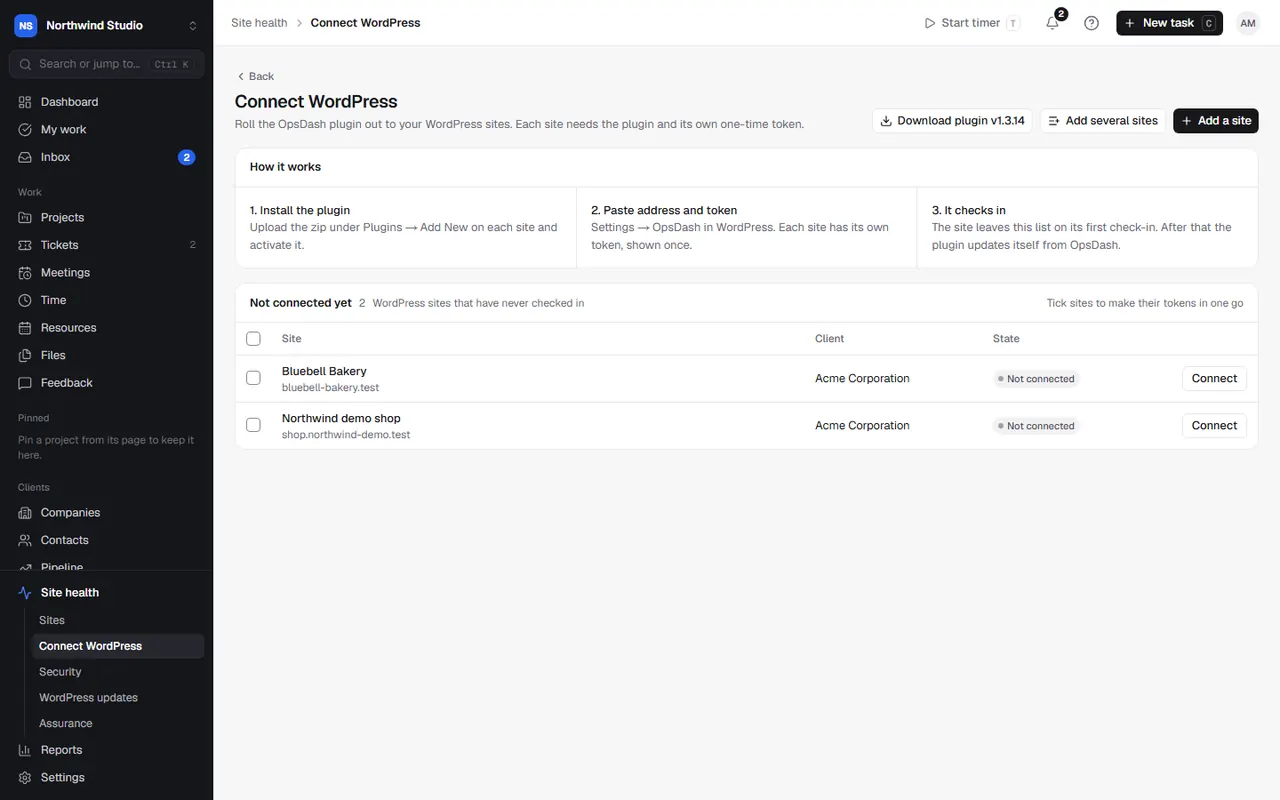
Sites stay on the Not connected yet list until their first check-in.
After it's connected
- The plugin checks in about every five minutes, and keeps itself up to date from OpsDash.
- Set the site's update policies, maintenance window and backups on its WordPress page: see WordPress updates.
- If the site has a staging copy, connect that too (as a staging site), then point the production site at it.
See what the connector does for exactly what it sends and does.
Settings in OpsDash
These open in OpsDash. You’ll be asked to sign in first if you aren’t already.
Related articles
- What the WordPress connector doesCheck-ins and wake-ups, what the plugin reports, how it updates sites one at a time, the feedback widget, one-click login, MailPoet and self-updates.
- WordPress updatesUpdate plugins, themes and WordPress safely, one at a time with a backup, automatically in a maintenance window or by hand, with staging, visual checks and failure tickets.
- WordPress connector troubleshootingWhat to check when a site won't connect, stops checking in, or updates won't start.