Creating a staff connection
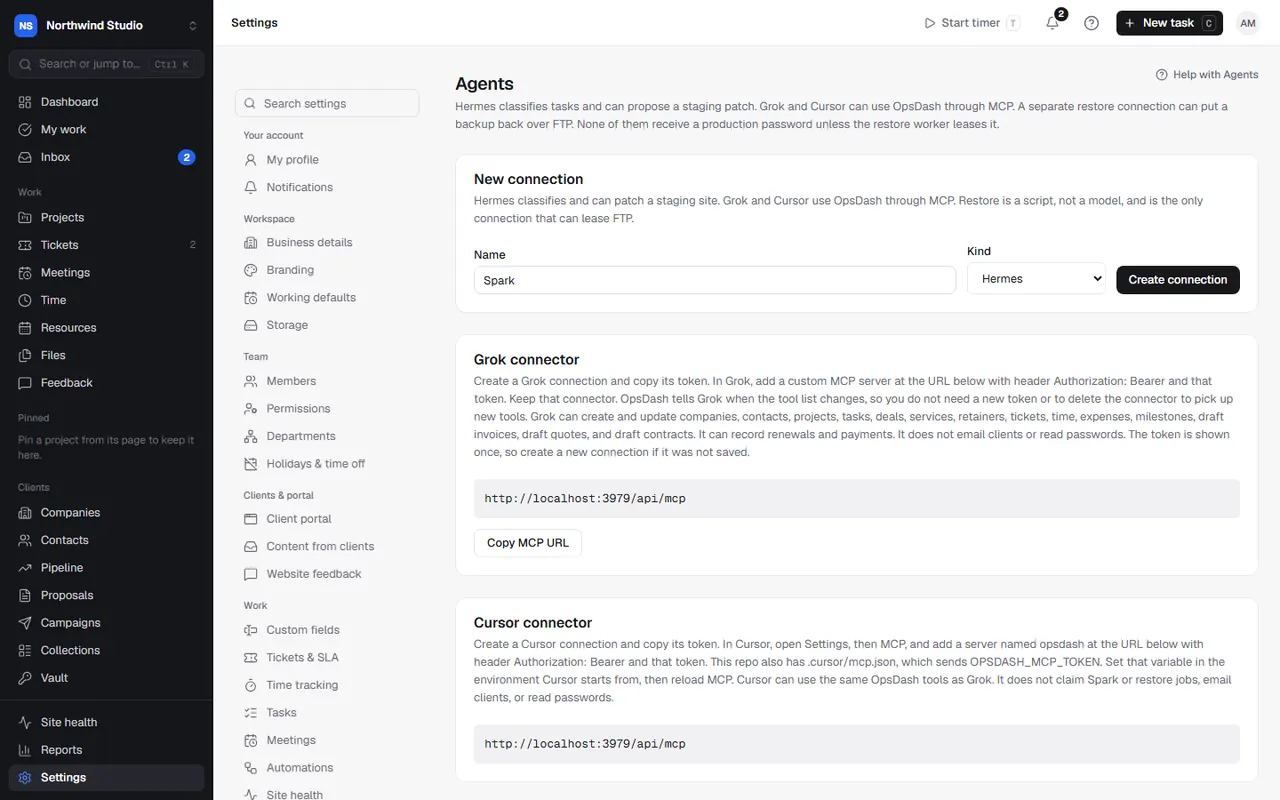
Make a connection and token in Settings › Agents for an AI assistant to use OpsDash's MCP server, and manage the connections you have.
Each AI assistant that uses OpsDash needs a connection: a name and a secret token it sends with every request. Only owners and admins can make connections, in Settings › Agents.
Make a connection
- Go to Settings › Agents.
- Under New connection, give it a name that says who and what it's for, for example "Claude Desktop (Sam's laptop)".
- Choose the kind:
- Cursor: for Cursor, Claude Desktop, Claude Code and most other MCP clients. It uses the OpsDash tools and nothing else.
- Grok: for Grok's custom MCP connector. The same tools.
- Hermes: for a Hermes worker that classifies tasks and prepares staging patches; its token also works with the MCP server.
- WordPress restore: for the emergency restore worker only. It's a script, not a model, and the only connection that can lease FTP passwords.
- Choose Create connection.
- Copy the token now. It's stored only as a fingerprint, so this is the only time it can be copied. For Cursor, Copy Cursor config gives you the whole configuration.
The page also shows the MCP server address for your OpsDash, with Copy MCP URL.
Lost a token? Create a new connection and remove the old one.
Your connections
The Connections list shows each connection's name, kind, the first characters of its token, when it was last used (updated at most every five minutes) and, for Hermes, its last claimed job.
- Switch a connection Off to stop it working for a while, and On again.
- Remove deletes it for good; any jobs it had claimed stop.
Whose permissions it has
A connection acts as the owner or admin who made it, across the whole workspace. If that person leaves the workspace or stops being an owner or admin, the connection stops working, with a message saying an admin needs to make a new one.
Agents can also be assigned tasks like a team member: an assistant can list "tasks assigned to me" and pick them up.
Limits
Each connection can make up to 180 requests a minute. If the tool list changes after an OpsDash update, assistants that support it are told, so you don't need a new token or to re-add the server to pick up new tools.
Next: connect Claude Desktop, Claude Code, or another MCP client.
Settings in OpsDash
These open in OpsDash. You’ll be asked to sign in first if you aren’t already.
Related articles
- Connecting Claude DesktopAdd OpsDash to the Claude Desktop app with your connection token, so Claude can read and update your projects, tasks, time and invoices.
- Connecting Claude CodeAdd OpsDash to Claude Code with a .mcp.json file that reads your token from an environment variable, so the token never goes in your code.
- Revoking connections and keeping tokens safeHow to store agent tokens safely, switch connections off or remove them, and what to do if a token leaks.