Security and the audit log
Require two-factor for your team, reset someone's two-factor, choose how clients sign in to the portal, and see who did what in the audit log.
Owners and admins change these.
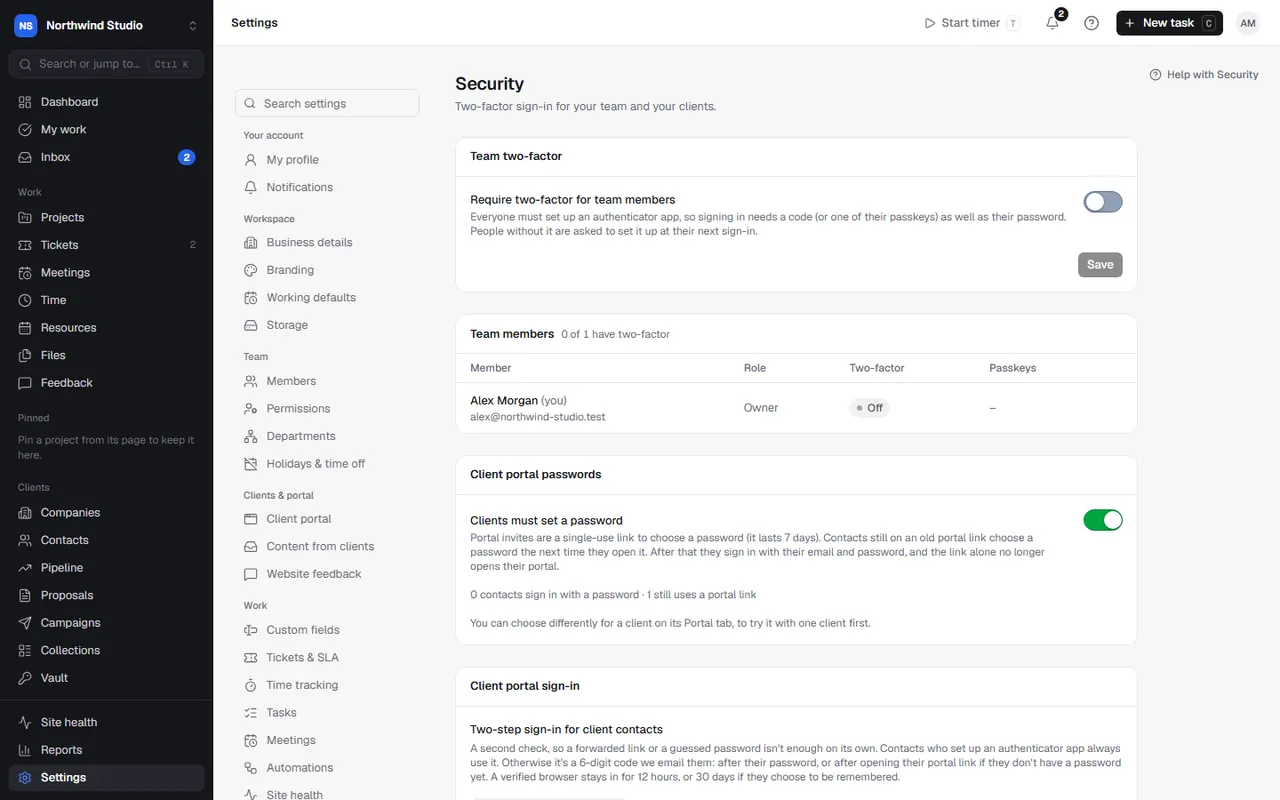
Security
- Team two-factor: Require two-factor for team members. Everyone must set up an authenticator app, so signing in needs a code (or one of their passkeys) as well as their password. Choose how many days people have to set it up; until then they see a banner, and after it they're asked to set it up before they can carry on. Contractors follow the same rule.
- Team members' two-factor: who has two-factor and passkeys. Reset two-factor for someone who has lost their phone and backup codes; they set it up again at their next sign-in.
- Client portal passwords: whether clients must set a password. You can choose differently for one client on its Portal tab, to try it with one client first.
- Client portal sign-in: two-step sign-in for client contacts, so a forwarded link or a guessed password isn't enough. Contacts with an authenticator app use it; others get a 6-digit code by email after their password, or after opening their portal link if they don't have a password yet.
See signing in and two-factor and setting up the client portal.
Audit log
Settings › Audit log shows who did what and when, across the whole workspace: sign-ins, WordPress logins, settings changes and record changes, including changes made by clients, automations and AI agents. Only owners and admins can see it.
Filter by person, record, action and date. Open an entry to see the details: the exact time, IP address, browser, and where it came from.
Settings in OpsDash
These open in OpsDash. You’ll be asked to sign in first if you aren’t already.
Related articles
- Signing in and two-factorPasswords, passkeys, authenticator apps and backup codes, and what to do if you're locked out.
- Setting up the client portalTurn on the portal, choose what clients see and can change, invite contacts, and decide how they sign in.
- What agents can and can't doThe OpsDash tools an AI assistant can use, grouped by area, and the things it will never do.