Companies and client pages
Add clients, prospects and suppliers, and use the client page to see everything about one client in one place.
A company is any organisation you deal with: a client, a prospect, a partner or a supplier. Projects, tickets, invoices, services, sites and contacts all hang off a company, so its page is the one place to see how a client is doing.
Add a company
- Go to Companies in the sidebar and choose New Company.
- Enter the name, and choose a type: Prospect, Client, Past Client, Partner, Vendor or Your company.
- Add the website, phone, email, address and, if they pay a different hourly rate from your usual one, the client rate.
- Save. You can add contacts straight away.
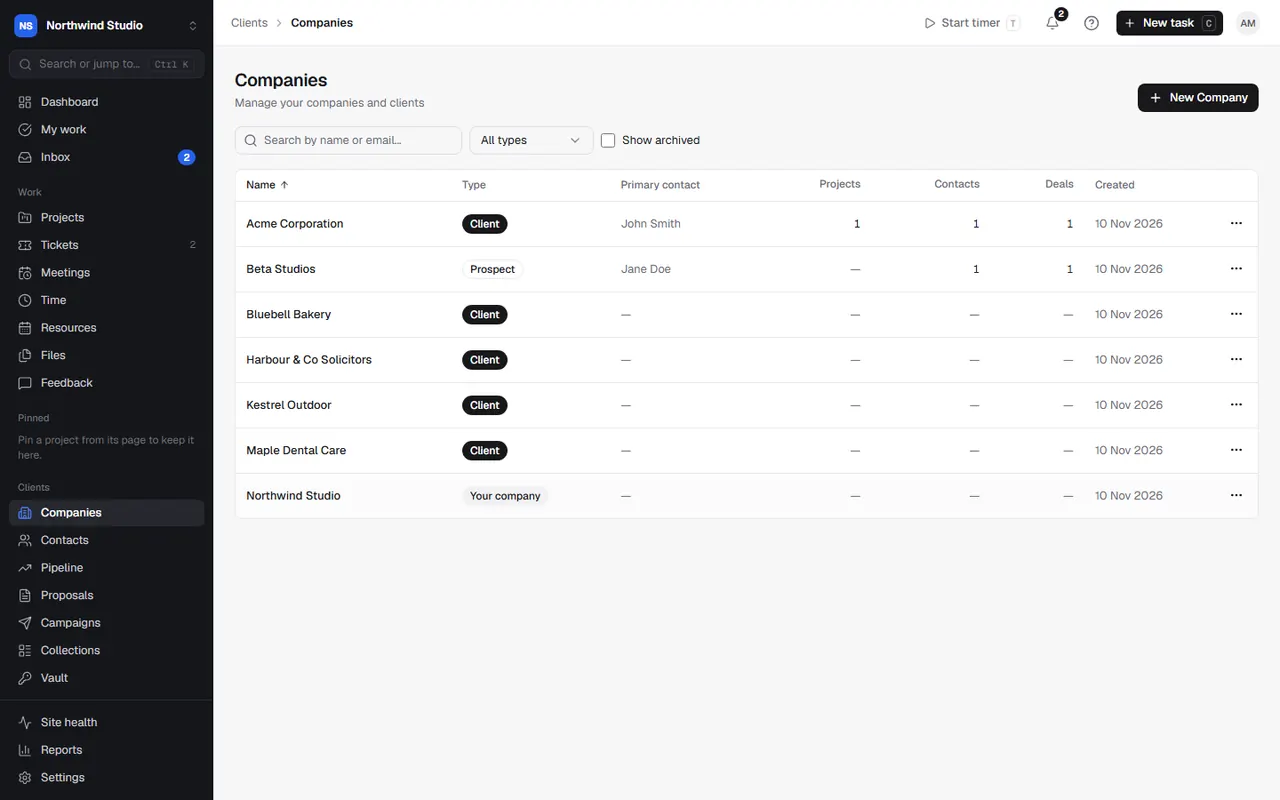
Search the list by name or email, filter by type, and tick Show archived to see archived companies.
Client types change themselves
You don't need to keep types up to date by hand:
- A prospect (or past client) becomes a client when a deal is won or a project starts for them.
- A client becomes a past client after a number of months with no active project, retainer or service. Set how many in Settings › Client portal › Client types.
- Partner, vendor and your own company are never changed. Each change is noted in the company's activity.
The client page
Open a company to see its page. The header shows quick actions (Log call, New ticket, New invoice, and more under the … menu), and the page has four tabs:
- Overview: what needs attention (overdue invoices, tickets past their SLA, renewals due, blocked tasks), active work and recent activity. Tiles across the top show what's owed, open tickets and agreement hours used.
- Work: projects, tickets, agreements, services, site health, collections, WordPress updates and assurance for this client.
- Billing: invoices, quotes, proposals and contracts, plus credit notes, payment schedules and statements.
- Activity: every note, call, meeting and change, newest first. Choose Log activity to add one.
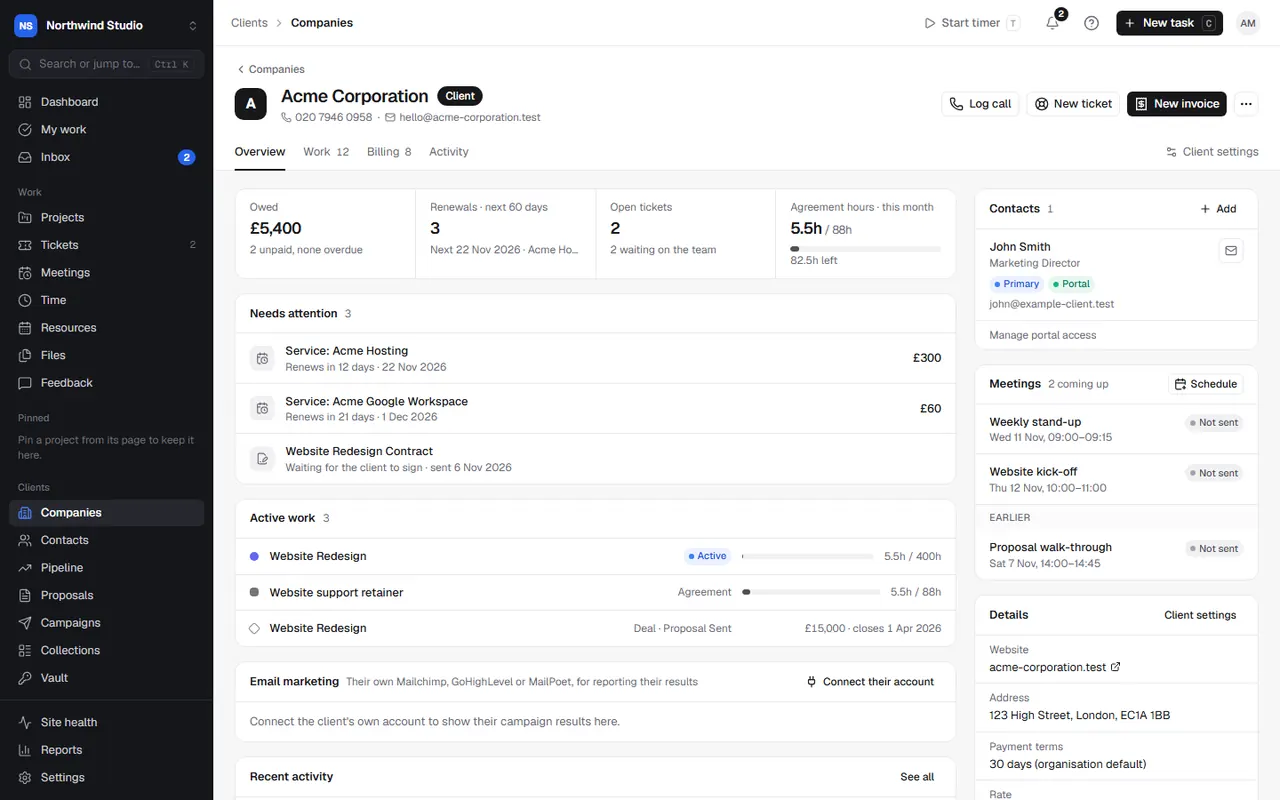
The side rail lists the client's contacts (with who has portal access) and their details: website, address, payment terms, billing email, rate and where their tickets go.
Client settings
Choose Client settings on the client page for the things that apply to this client only:
- Looking after the client: the account manager, and which team new tickets go to.
- Billing: payment terms (or your usual default), invoice currency, billing email and hourly rate. Invoices and reminders lets you choose separate invoices or one monthly invoice, and whether this client follows your usual reminder schedule, its own, or none. Pause reminders stops all chasing, with a note for the team.
- What the client sees in the portal: whether time is internal only, shown as totals, or shown entry by entry, and whether assurance shows. See setting up the client portal.
- Client group: link a brand or site to a parent company, and choose whether its invoices go to the parent or to itself.
- Their AI assistants: let this client connect their own AI assistant, and see or revoke their tokens.
Archive or delete
Archive takes a company out of the list but keeps its projects, invoices and history; restore it from the archived list. Delete permanently (only on archived companies) can't be undone, so archive is almost always the better choice.
Extra fields
Need to record a sector, company number or anything else? Add your own fields in Settings › Custom fields.
Settings in OpsDash
These open in OpsDash. You’ll be asked to sign in first if you aren’t already.
Related articles
- Contacts and groupsKeep the people at each client, give them portal access, and group them for campaigns.
- Setting up the client portalTurn on the portal, choose what clients see and can change, invite contacts, and decide how they sign in.
- Deals and the pipelineTrack sales from enquiry to won, chase next steps, spot opportunities with existing clients, and let a won deal set up the work.