Timesheets, missing time and time reports
Fill in a weekly timesheet, see who's behind on their hours, and report on time by client, person, project or task.
Your timesheet
Time › Timesheet shows your week as a grid: a row per project or task, a column per day.
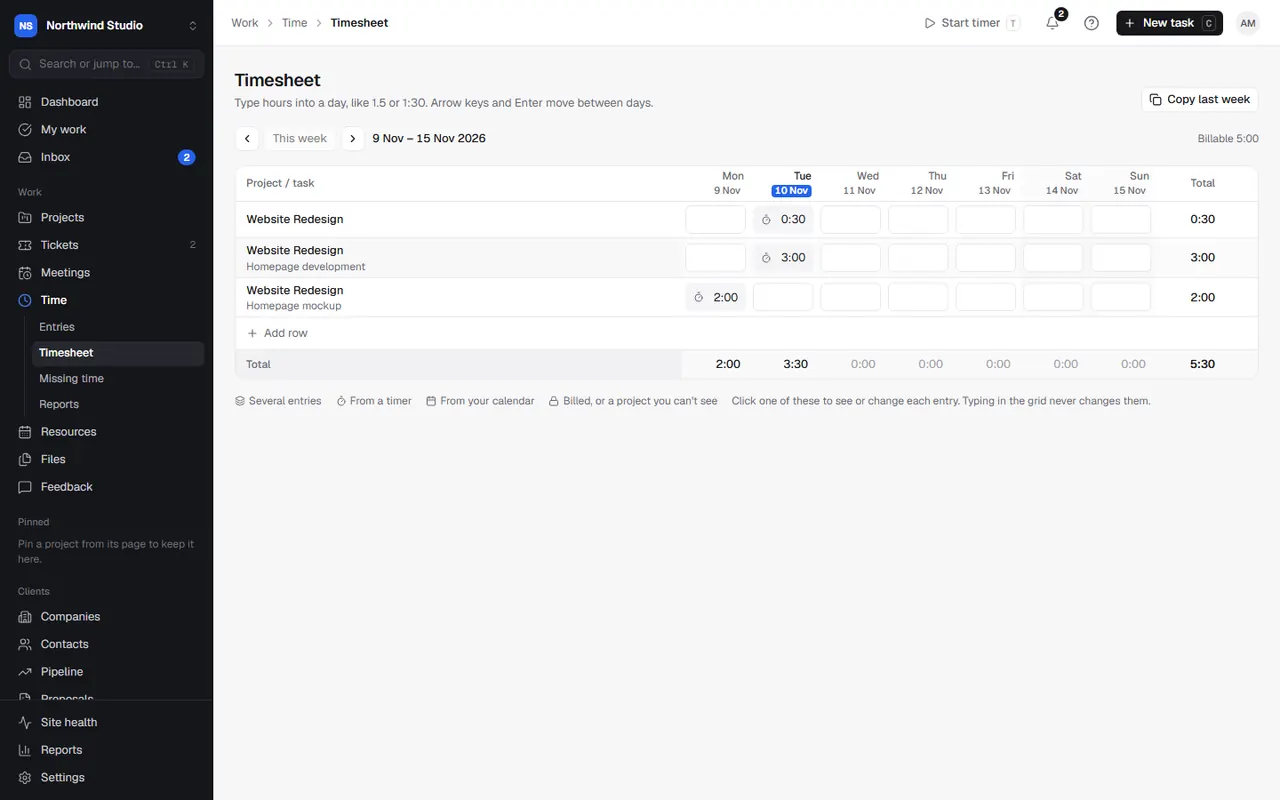
- Type hours into a day, like
1.5or1:30. Arrow keys and Enter move between days. - Add a row for new work, or Copy last week to start with last week's rows.
- Cells with several entries, time from a timer, time from your calendar, or time that's billed (or on a project you can't see) are marked. Click one to see or change each entry; typing in the grid never changes them.
- With calendar suggestions on, the week's calendar events appear here to log.
Missing time
Time › Missing time shows, for each person, the hours they've logged against what was expected, by week or month. Expected hours come from each person's contracted hours over their working days, less bank holidays, closure days and approved time off. People under are easy to spot, so you can nudge them before invoicing.
Turn on automatic reminders in Settings › Time tracking.
Time reports
Time › Reports has three reports:
- Summary: time for a date range, grouped by client, person, project, task or week, split into billable and non-billable, with hours by day. Filter by project or client.
- Estimate vs actual: projects against their hours budget, and tasks against their estimates, with the difference.
- Client report: one client's time for a month, as they'd see it in their portal (every entry, totals only, or nothing when their time is internal only).
Export as CSV (the table, or every entry) or PDF.
Hours budgets
Set a project's (and each phase's) hours budget in the project's Settings › Hours budget. In Settings › Time tracking, choose to alert the project manager and account manager at 80% and 100%. On retainers, each month's budget comes from the agreement.
Rounding on invoices
How time is rounded when it's invoiced (for example up to the nearest 6 or 15 minutes, per entry or per line) is set in Settings › Invoices & quotes › Billing rounding. Your timesheet always shows the time as logged.
Settings in OpsDash
These open in OpsDash. You’ll be asked to sign in first if you aren’t already.
Related articles
- Tracking timeStart and stop timers, switch task without losing time, log time by hand or from your calendar, and edit entries.
- ReportsThe scorecard and targets, profitability by client and project, money out, cash forecast, aged debtors, utilisation, revenue, pipeline and tasks.
- Agreements, retainers and hour blocksSet up retainers, SEO, PPM and care plans with included or prepaid hours, rollover and overage, and close each period.