Stripe and online payments
Put a Pay now link on invoices, reminders and the portal, through Stripe or QuickBooks Payments, and record card payments automatically.
Clients pay faster when they can pay by card from the invoice. In Settings › Bank & payment, choose how Pay online works:
- Bank transfer only: invoices show your bank details and no Pay now link.
- QuickBooks Payments: QuickBooks' own Pay now page (card, bank, PayPal), once each invoice has synced. Needs QuickBooks two-way sync switched on.
- Stripe: card payments through your own Stripe account.
Whichever you choose, the Pay now link appears next to your bank details on invoice emails, PDFs, payment reminders and the client portal.
Bank details
Add the account clients pay into (bank name, account name, account number, sort code, IBAN, SWIFT/BIC) in Settings › Bank & payment. They're shown on invoices and in reminder emails.
Set up Stripe
What you need: a Stripe account, and owner or admin access in OpsDash.
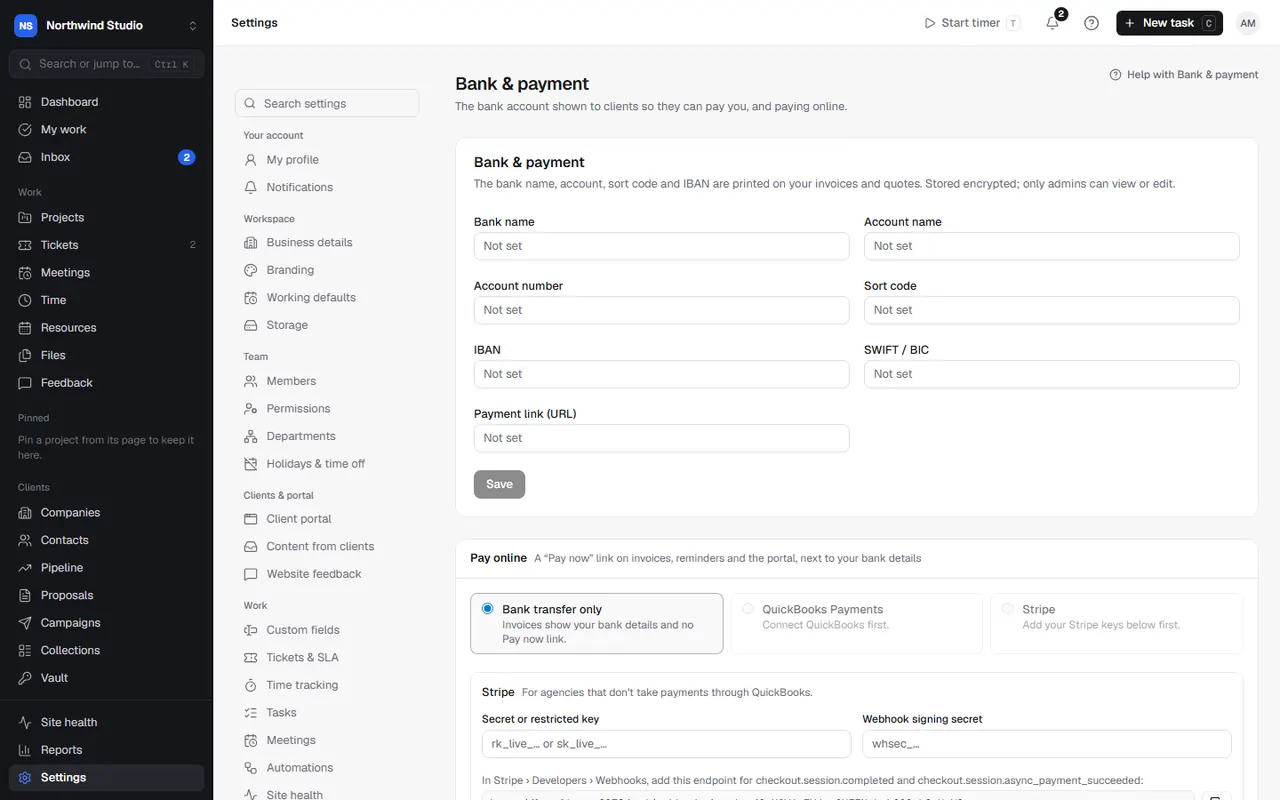
- In Stripe, create a restricted key that can create Checkout Sessions (or use your secret key).
- In Settings › Bank & payment › Pay online, paste it as the secret or restricted key.
- In Stripe › Developers › Webhooks, add the endpoint address OpsDash shows, for the events checkout.session.completed and checkout.session.async_payment_succeeded.
- Copy the endpoint's webhook signing secret from Stripe into OpsDash.
- Choose Stripe as how clients pay online, and save.
Keys are stored encrypted; once saved, the box shows "Saved (enter a new one to replace)". Remove Stripe disconnects it.
What it changes in OpsDash
When a client pays through the Pay now link, the payment is recorded on the invoice and it's marked paid (or part paid). If QuickBooks sync is on with Payments recorded in OpsDash go to QuickBooks, Stripe payments go to QuickBooks too.
Direct Debit
Set up GoCardless inside QuickBooks Payments for now; those payments come back through the QuickBooks sync.
Troubleshooting
- No Pay now link on invoices: check Pay online isn't set to Bank transfer only. With QuickBooks Payments, the link appears only after the invoice has synced to QuickBooks.
- Clients paid but the invoice isn't marked paid: check the Stripe webhook is added for both events and the signing secret matches.
- "Add your Stripe keys below first": save the key and signing secret before choosing Stripe.
Settings in OpsDash
These open in OpsDash. You’ll be asked to sign in first if you aren’t already.
Related articles
- Payments, credit notes and payment schedulesRecord payments, take card payments online, correct invoices with credit notes, and split projects into staged payments.
- QuickBooksSync clients, invoices, credit notes and payments with QuickBooks Online both ways, and use QuickBooks' Pay now links.
- Payment reminders and late payment chargesChase late payers automatically, be tougher on hosting invoices, add UK late payment charges, and pause reminders when needed.