Agreements, retainers and hour blocks
Set up retainers, SEO, PPM and care plans with included or prepaid hours, rollover and overage, and close each period.
An agreement is an ongoing arrangement with a client: a retainer, PPM, SEO, or a hosting or maintenance plan. It can have a regular fee, hours (included each period, or bought in blocks), rules for unused hours and for hours over, and it closes itself at the end of each period.
Creating and managing agreements needs the See financial reports permission.
Create an agreement
Go to Agreements and choose New agreement (or Make an agreement from a plan that isn't in one yet):
- Name, client and kind: Retainer, PPM, SEO, Hosting or maintenance plan, or Other.
- Project (optional): time on this project counts against the hours.
- Status: only Active agreements close each period and send alerts.
- Start and optional end date.
- Billing cycle: how often the fee is charged (weekly, monthly, quarterly or annually). The hours can reset on their own cycle.
- Hourly rate: for hours over, and for project time billed from time.
- Renewal plan (optional): the client's renewal plan, so the fee and hours over go on the same invoice as their hosting and services.
How the hours work
Choose one:
- Included each period: a set number of hours each period (for example 10 hours a month), with their own reset cycle.
- Prepaid hour blocks: the client buys blocks of hours (for example 20 hours), and time logged from the day they're bought draws on them. Add the first block when you create the agreement, and Buy more hours later from the agreement page. Tick Draft an invoice for these hours to put the price on a draft invoice (nothing is sent).
Leave hours empty if the agreement doesn't include any. Deliverables (blog posts, reports) can be listed too.
Which work counts
Choose Project time, Ticket time, Both, or All client work (any of the client's projects plus ticket time). Count non-billable time too is on by default: covered work is often logged as non-billable because it isn't invoiced line by line, and counting it shows the hours really used.
Alerts and rollover
- Warn at: a percentage of the hours. Agreements at or over it show under Running low.
- Rollover: what happens to unused hours: none roll over, all roll over, or capped (a maximum carried, and how many months rolled hours last).
Hours over
Choose what happens to hours used beyond what's included:
- Track only: recorded at the period end and shown in the overage report. Nothing is billed.
- Bill at the agreement rate: added to the period's draft invoice.
- Ask first: at the period end, the account manager decides whether to invoice them or let them go.
Closing a period
Each period closes on its own once it ends: the time is counted, rollover is worked out, and any hours over are recorded. The fee (and hours over, if billed) go on a draft invoice for you to check. Close now does it early.
The agreement page shows this period's hours left, included, rolled over and used, projected usage by the period end, closed periods with profit, and total revenue, cost and profit.
The agreements page and overage report
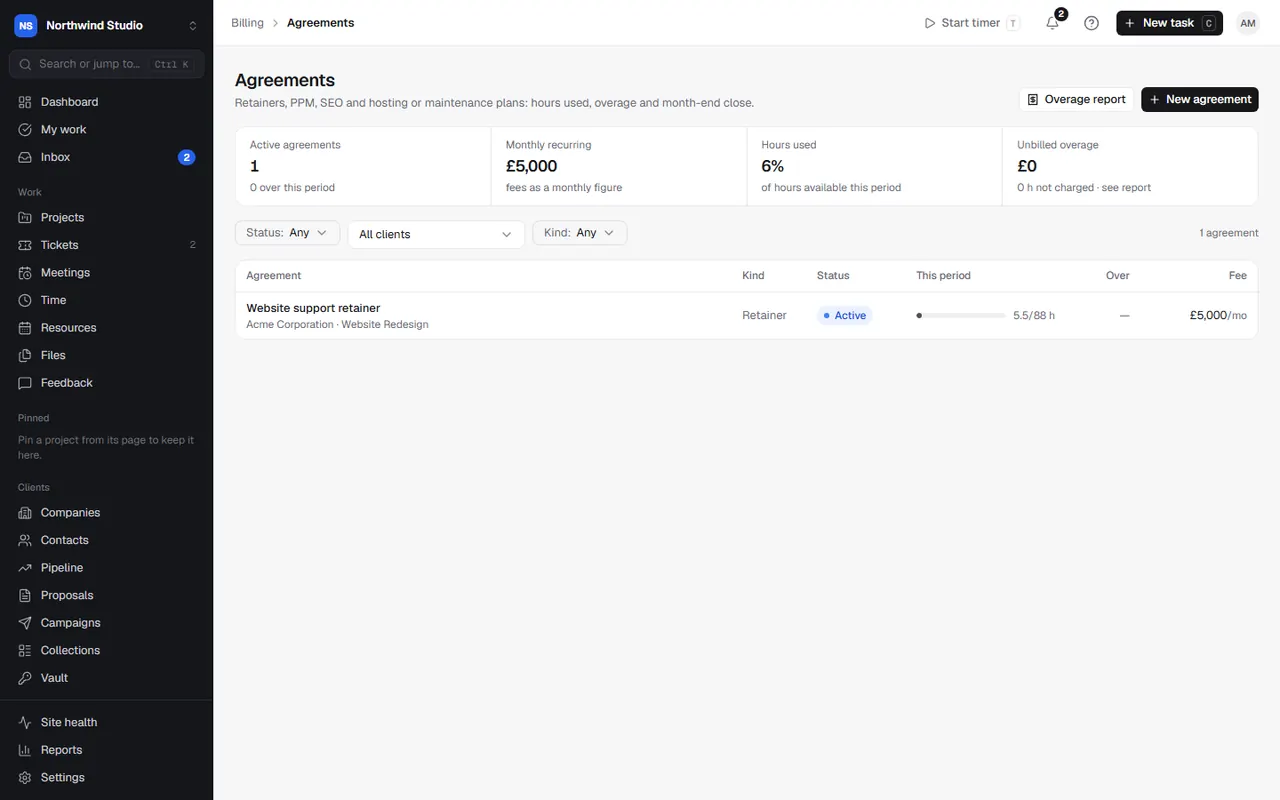
Agreements shows active agreements, monthly recurring income, hours used this period, unbilled overage and those running low. The Overage report lists hours over agreements by client and month that haven't been billed: Add to invoice or Don't charge each one.
Clients see their hours
If you show time in the portal for a client, they see their agreement hours on their Your plan page. See setting up the client portal.
Settings in OpsDash
These open in OpsDash. You’ll be asked to sign in first if you aren’t already.
Related articles
- Services and renewalsTrack clients' hosting, domains, licences and care plans, renew them on time, bundle them into renewal plans, and watch your margins.
- Tracking timeStart and stop timers, switch task without losing time, log time by hand or from your calendar, and edit entries.
- InvoicesCreate invoices by hand or from time and expenses, get them approved, send them, and track what's owed.