The vault (client logins)
Keep client logins encrypted, share them safely with clients, contractors or by one-time link, and change passwords when someone leaves.
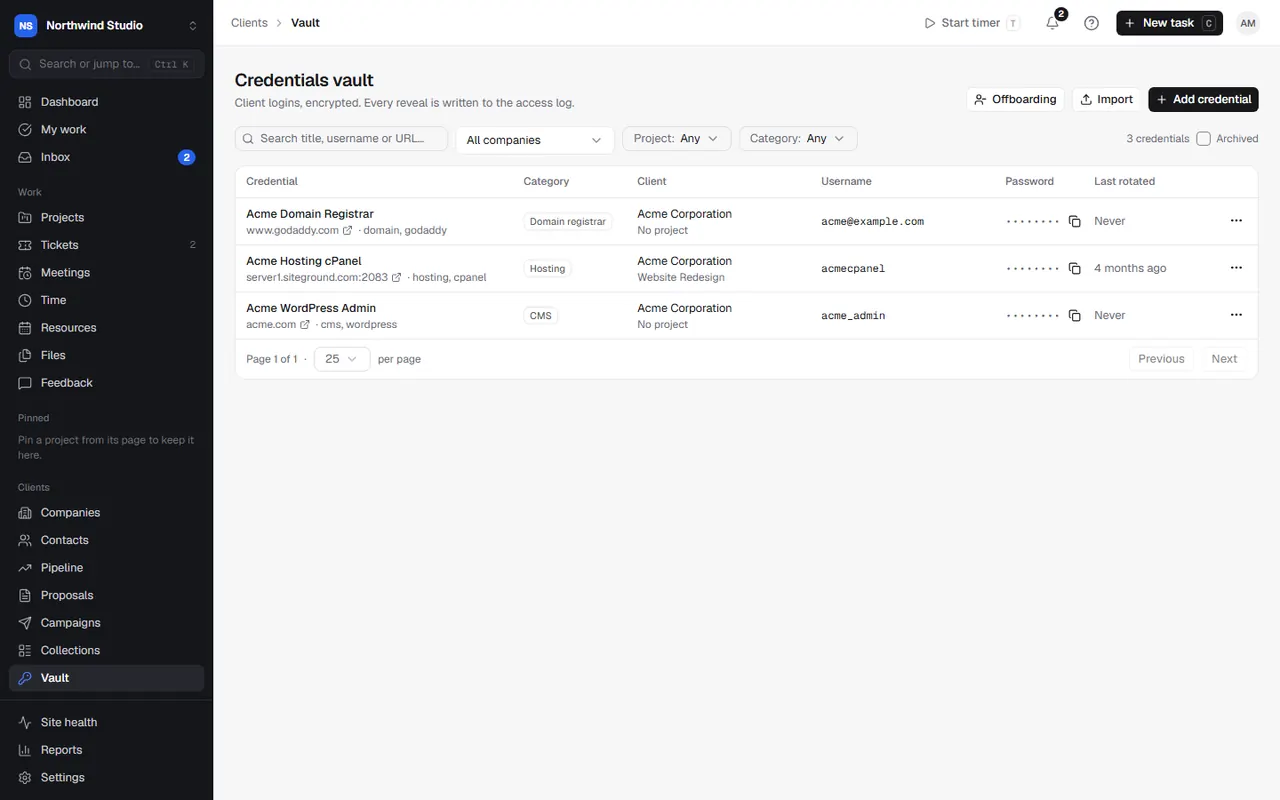
The Vault stores your clients' logins (website admins, hosting, domains, social accounts) encrypted. Every time someone reveals or copies a password it's written to an access log.
Add a login
- Go to Vault and choose Add credential.
- Give it a title, category and URL, and the username and password. Generate makes a strong password and copies it.
- Link it to a company (and a project if you like).
- Optionally set a rotation reminder: we remind you when the password hasn't been changed in that many days.
- Add notes, such as recovery codes. If the site uses an authenticator app, add its secret and OpsDash shows the current 2FA code.
Who can see passwords
Seeing passwords and notes needs the Reveal vault passwords and notes permission (owners and admins have it). Others can see that a login exists but not the password. Set this in Settings › Permissions.
When you copy a password, the clipboard clears after 30 seconds.
Sharing a login
Open a login to share it three ways:
- Share links: a one-off link that's safer than pasting a password into email or chat. Choose when it expires, whether it works only once (View once), and whether it needs a passcode (we make one for you; five wrong tries lock the link). Send the link and passcode in different ways, for example the link by email and the passcode by text. You can include the notes, and Revoke a link at any time.
- Shared in the client portal: pick contacts at the client. They see it on their portal's Logins page, and can be allowed to update it. Each reveal is logged.
- Shared with contractors: they see only the logins shared with them, in their own work area.
Clients can also add logins themselves from their portal; these are marked Client-submitted.
Importing logins
Choose Import to bring logins in from:
- a passwords file exported from Chrome, Edge, Firefox, Safari, 1Password, LastPass or Bitwarden (the page tells you where each one's export is),
- notes you paste in ("site / user / password" lines),
- a monday.com board.
You check every login before anything is saved, and choose to add, skip, update an existing password or add as new. The file is read in your browser and checked in memory; it's never stored. Delete the export from your computer afterwards.
When someone leaves: offboarding
When you remove a team member who had seen logins, OpsDash makes an offboarding checklist (under Vault › Offboarding). It lists every login they revealed, copied, shared or added, until each password has been changed. For each one, set a new password (or Generate one) and it's ticked off, or choose Not needed with a reason (for example the account was closed). You can also start a checklist from someone's profile in Settings › Team.
Settings in OpsDash
These open in OpsDash. You’ll be asked to sign in first if you aren’t already.
Related articles
- Project access and permissionsChoose which projects people can see, and what each role and person can do beyond that: finances, the vault, WordPress logins, campaigns and settings.
- Your contractor work areaFor freelancers and contractors: accept your invite, see your tasks, projects and bookings, use shared logins, and keep your account secure.
- Sharing logins safelySee logins your agency shares with you, and send them your logins securely instead of by email.