Getting started with your portal
What your client portal is for, how to open it, and finding your way around.
Your agency's client portal is where you follow your projects, approve work, ask for help and see your account, all in one place, any time.
Opening your portal
Your agency sends you an email with a link to your portal.
- If your agency uses passwords, the first link asks you to choose one. After that, sign in with your email address and password on your agency's portal sign-in page.
- Otherwise, the link opens your portal directly. You may be asked for a short code we email you, to check it's you.
Finding your way around
The menu on the left (or behind the menu button on a phone) shows the parts of the portal your agency has switched on for you:
- Overview: your active projects, recent invoices and quotes.
- Inbox: replies and updates for you.
- Waiting on you: anything your agency needs from you. The number shows how many.
- Projects: your projects, with their progress, tasks and files.
- Feedback: feedback you've sent about your website.
- Support: your support tickets.
- Meetings: meetings you're invited to.
- Reports: monthly reports from your agency.
- Invoices and Quotes: if you can see them.
- Your plan: your agreement, services and time.
- Logins: logins your agency shares with you, and a safe way to send them yours.
- Assurance: checks your agency carries out for you.
- Team and AI assistant: for your company's portal admins.
- Help: these guides.
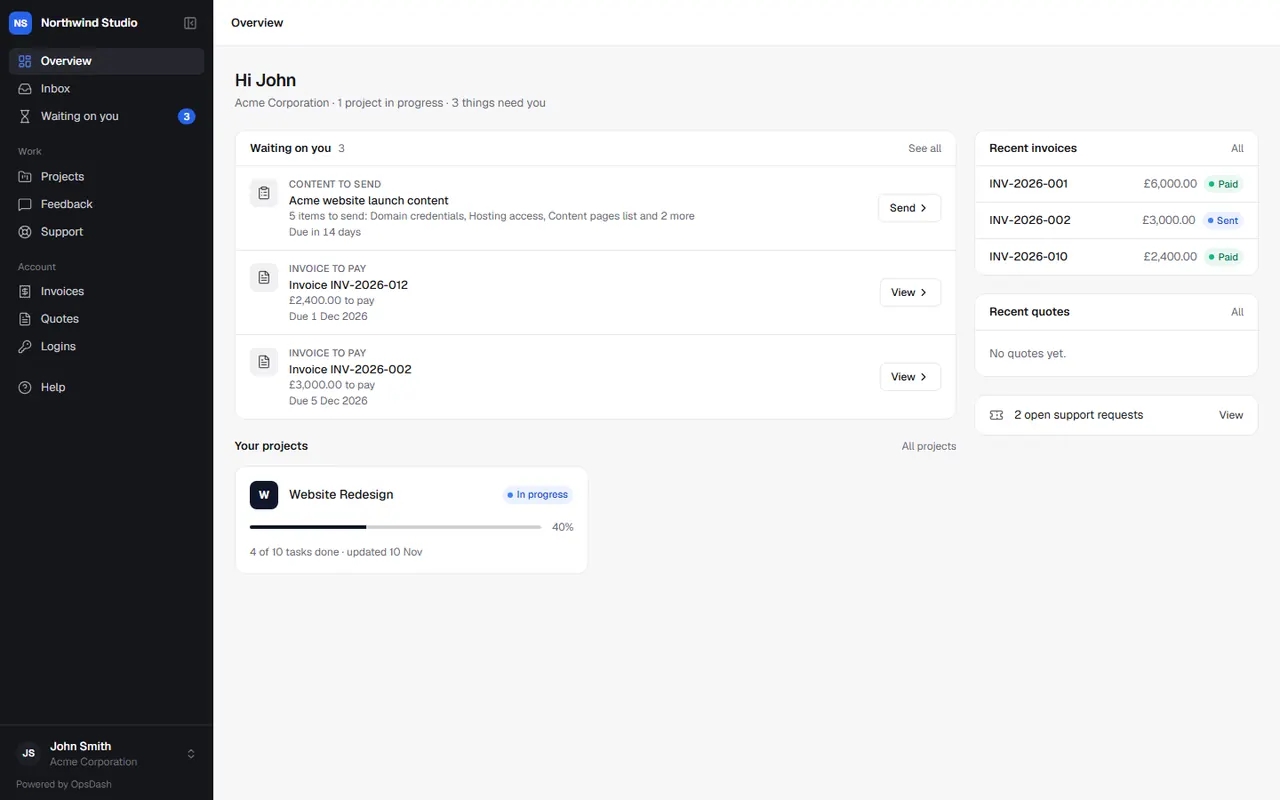
Your account menu at the bottom has your password and security settings, and signing out.
What you'll see depends on you
Your agency decides which parts of the portal are on, and what each person at your company can see. If something's missing that you'd expect, ask your contact at the agency, or a portal admin at your company.
Related articles
- Signing in and securityChoosing and resetting your password, sign-in codes, adding an authenticator app, recovery codes, and signing out everywhere.
- Waiting on you and your inboxSee everything your agency needs from you in one list, and keep up with replies and updates in your inbox.
- Your projects and tasksFollow a project's progress, milestones and updates, see and add tasks, comment, share files, and log your own time.