Google Calendar and Drive
Each person connects their own Google account to put meetings, tasks and time off on their calendar, log time from events, and attach Drive files.
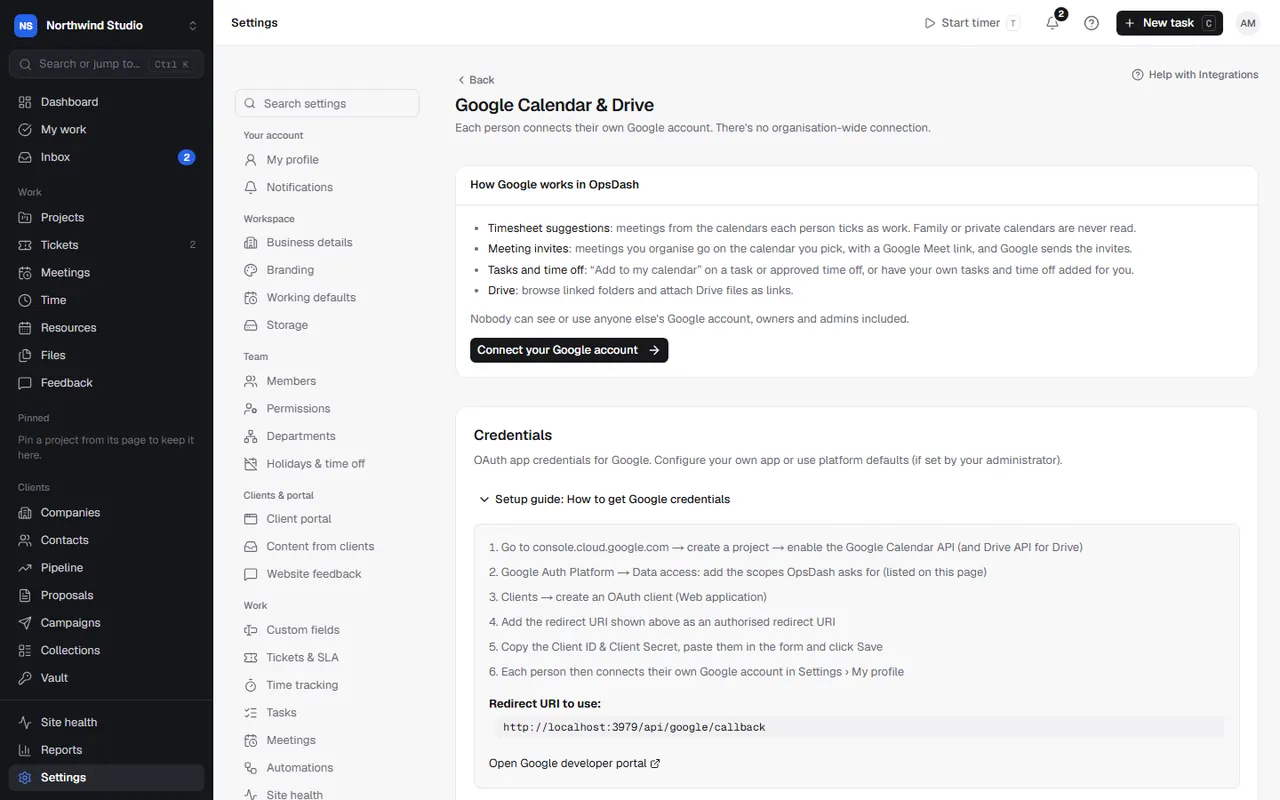
Google works per person in OpsDash: everyone connects their own Google account and picks which of their calendars are work. Nothing is connected for the whole organisation, and nobody can see or use anyone else's Google account, owners and admins included.
What it does
- Timesheet suggestions: meetings from the calendars you tick as work appear in the timer and on your timesheet, ready to log. Family or private calendars are never read.
- Meeting invites: meetings you organise go on the calendar you pick, with a Google Meet link, and Google sends the invites.
- Tasks and time off: Add to my calendar on a task or approved time off, or have your own tasks and time off added for you.
- Drive: browse linked Drive folders on projects and attach Drive files as links. OpsDash never changes your Drive.
What you need first
Your OpsDash needs a Google OAuth client set up. If it isn't, connecting says "Google isn't set up for this organisation yet": an owner adds it under Settings › Integrations › Google Calendar & Drive with Configure (a Google Cloud OAuth client's ID and secret, with the redirect URI shown there added to it). Using your own OAuth client? That page lists the Google access OpsDash asks for, to add on your consent screen (Google Auth Platform › Data access). Each is only asked for when someone first uses the feature that needs it.
Connect your Google account
- Go to My profile › Your Google account.
- Choose Connect Google Calendar (or Connect Google Drive) and sign in to Google.
- Tick every box Google shows. If you miss one, OpsDash says some access wasn't ticked: connect again and tick them all.
It shows Connected as your Google address. Disconnect removes OpsDash's access to your Drive and Calendar.
Choose your calendars
Under My profile › Your calendars:
- Work calendars: tick the calendars that count as work. Nothing ticked means OpsDash won't read any calendar.
- New events go into: the calendar for meetings you organise, and tasks and time off you add.
- Show my calendar events as suggestions: today's in the timer, the week's on your timesheet. All-day and declined events are always left out.
- Leave out events marked free (reminders, optional sessions).
- Put tasks assigned to me on my calendar: tasks with a due date are added, marked free so they never block your time, and follow date changes.
- Put my approved time off on my calendar: as all-day events.
Give calendar access for meetings
Reading your calendar and adding meetings to it are separate permissions. If OpsDash can read but not add, meeting pages say so: choose Give calendar access and approve it in Google. Until then, meeting invites go by email with a calendar file.
Booking links
Hosts who've connected Google have their busy times left out of booking links, and can offer Google Meet.
Troubleshooting
- "Your Google connection has expired": choose Reconnect Google.
- No suggestions on my timesheet: tick at least one work calendar, and switch on Show my calendar events as suggestions.
- Meetings aren't going to Google: give calendar access (above), and check you're the meeting's organiser.
- An old organisation-wide connection is still saved: owners see Remove old connection on the Google page. Removing it cancels its tokens at Google; events already on calendars stay.
Settings in OpsDash
- My profile › Your Google account
- My profile › Your calendars
- Integrations › Google Calendar & Drive
- Meetings › Your Google Calendar
These open in OpsDash. You’ll be asked to sign in first if you aren’t already.
Related articles
- MeetingsSchedule meetings with agendas, send invites through Google Calendar or by email, take notes and action items, share a summary with the client, and log the time.
- Tracking timeStart and stop timers, switch task without losing time, log time by hand or from your calendar, and edit entries.
- Files and the media libraryFind every client's files by client and project, organise them in folders, share folders with clients, link Google Drive, and keep versions.