Project access and permissions
Choose which projects people can see, and what each role and person can do beyond that: finances, the vault, WordPress logins, campaigns and settings.
Owners and admins can always see and do everything. For everyone else, two settings decide what they get: project access (which projects they see) and permissions (what they can do beyond that).
Project access
In Settings › Members › Project access:
- By role: whether people in a role see all projects or only their projects (projects they're a member of or have a task on).
- By person: override someone's role, or allow and block single projects.
People only see tasks, time, files and comments for projects they can see.
Permissions
In Settings › Permissions, tick which roles can do each thing (By role), or give or take away a permission for one person whatever their role says (By person: Allow or Block).
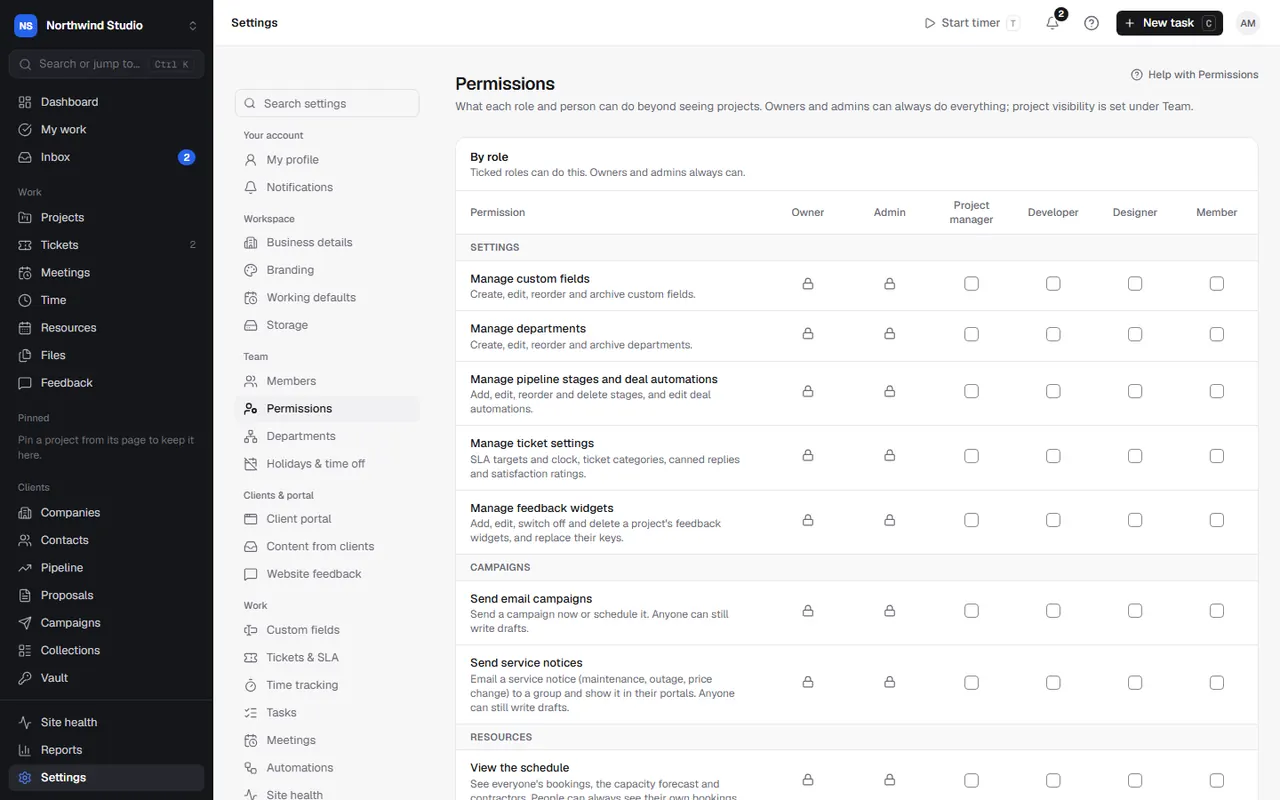
| Permission | What it allows |
|---|---|
| See financial reports | Money reports, profitability, staff cost, agreements, and money figures on dashboards. Can be limited to certain projects. |
| Reveal vault passwords and notes | Seeing and copying passwords and notes in the vault, importing logins, and offboarding checklists. |
| Log in to client WordPress sites | One-click WordPress login. |
| Send email campaigns | Sending and scheduling campaigns. |
| Send service notices | Sending service notices. |
| View the schedule / Manage the schedule | Seeing and changing the team schedule. |
| Sync with QuickBooks | The QuickBooks settings and import review. |
| Import from monday.com | The monday.com import. |
| Manage custom fields | Settings › Custom fields. |
| Manage departments | Settings › Departments. |
| Manage pipeline stages and deal automations | Settings › Pipeline. |
| Manage ticket settings | Settings › Tickets & SLA. |
| Manage feedback widgets | Adding and changing website feedback widgets. |
Read-only settings
Everyone can open every settings page. People who can't change a page see it read-only, with a note saying why, and the settings menu shows a lock beside it.
Settings in OpsDash
These open in OpsDash. You’ll be asked to sign in first if you aren’t already.
Related articles
- Team members and invitationsInvite people by email or link, choose their role, set their capacity, rates and staff cost, and remove people who leave.
- The vault (client logins)Keep client logins encrypted, share them safely with clients, contractors or by one-time link, and change passwords when someone leaves.
- One-click WordPress loginOpen a client's wp-admin already signed in, from OpsDash, without sharing or typing passwords.