Mailchimp, GoHighLevel and MailPoet
Connect your email marketing tool to sync groups, tags and unsubscribes, bring campaign results onto contacts, and show clients' own campaign results.
If you already use Mailchimp, GoHighLevel or MailPoet for email marketing, connect it in Settings › Email marketing tools. Nothing syncs until you switch it on. Keys and tokens are checked, then stored encrypted; only owners and admins can see or change them.
Mailchimp
What it does: syncs groups and tags both ways, keeps unsubscribes in step, and brings campaign opens and clicks onto contact timelines.
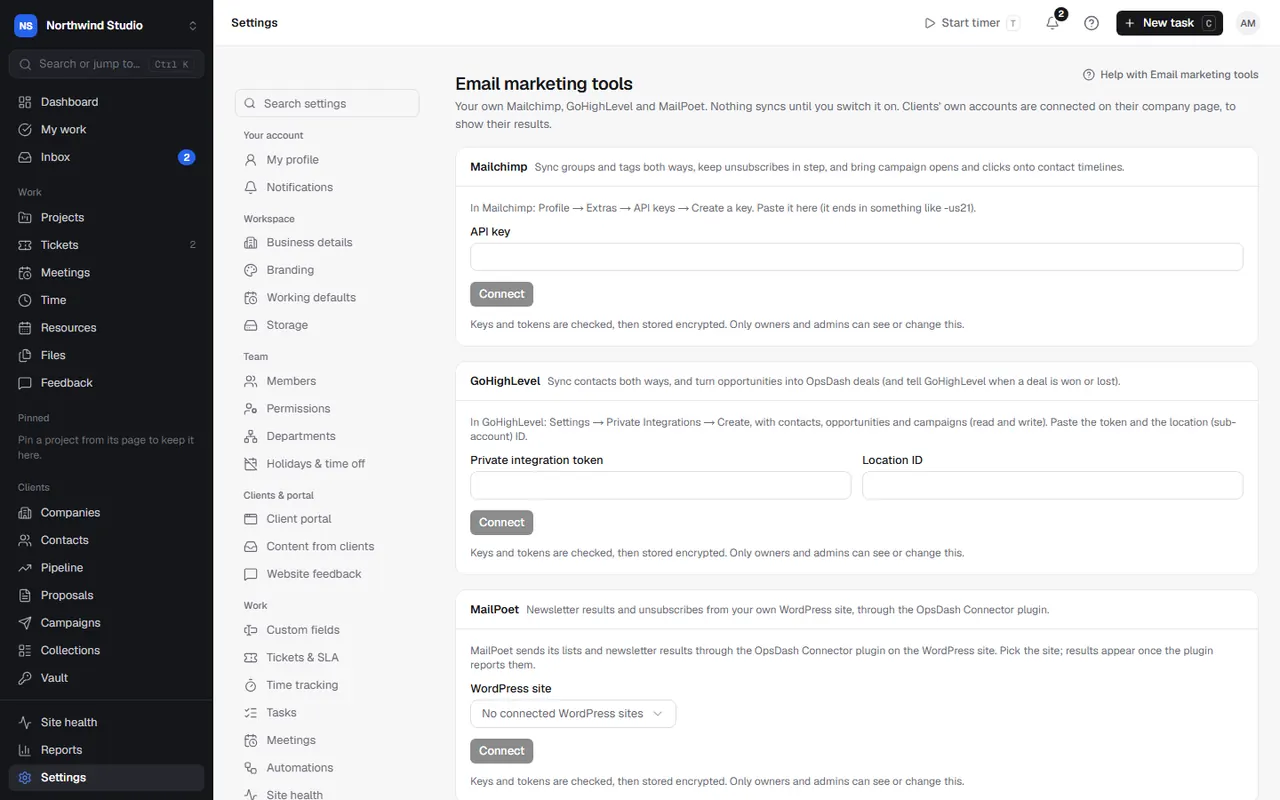
- In Mailchimp, go to Profile › Extras › API keys › Create a key. It ends in something like
-us21. - In OpsDash, choose Mailchimp, paste the API key, and connect.
- Choose the audience, which OpsDash groups to send, and whether to also send each contact's OpsDash tags and bring campaign opens and clicks onto contact timelines.
- Save, then switch syncing on. Sync now runs it straight away.
Only people with marketing consent who aren't on the never-email list are sent to Mailchimp. Anyone sent before who withdraws consent is unsubscribed there.
GoHighLevel
What it does: syncs contacts both ways, and turns opportunities into OpsDash deals (and tells GoHighLevel when a deal is won or lost).
- In GoHighLevel, go to Settings › Private Integrations › Create, with contacts, opportunities and campaigns (read and write).
- In OpsDash, choose GoHighLevel and paste the private integration token and the location (sub-account) ID.
- Choose which pipeline's opportunities become deals (or don't sync opportunities), and match each GoHighLevel stage to an OpsDash stage. Won and lost opportunities go to your won and lost stages.
- Optionally tick When a linked deal is won or lost in OpsDash, mark the opportunity won or lost.
MailPoet
What it does: brings newsletter results and unsubscribes from your own WordPress site, through the OpsDash Connector plugin.
- Make sure the WordPress site running MailPoet has the connector installed and connected.
- In OpsDash, choose MailPoet and pick the WordPress site.
- Results appear once the plugin reports them (it sends lists and newsletter results hourly, and new unsubscribes).
Clients' own accounts
To report a client's own campaign results, connect their account on their company page, under Email marketing. It's read only: OpsDash shows their campaign results (fetched once a day) and never changes their audience.
Troubleshooting
- Mailchimp key refused: copy the whole key, including the
-us…ending. - GoHighLevel can't see opportunities: the private integration needs opportunities read and write, and the location ID must be the sub-account's.
- MailPoet says it's waiting for the first report: check the site's connector is checking in; choose Check in now on the plugin's settings page in WordPress.
- Recently engaged prospects come from campaign opens and clicks: see campaigns.
Settings in OpsDash
These open in OpsDash. You’ll be asked to sign in first if you aren’t already.
Related articles
- Campaigns, sequences and templatesSend email campaigns to groups, run automatic sequences such as client onboarding, use branded templates, and respect consent and unsubscribes.
- Contacts and groupsKeep the people at each client, give them portal access, and group them for campaigns.
- What the WordPress connector doesCheck-ins and wake-ups, what the plugin reports, how it updates sites one at a time, the feedback widget, one-click login, MailPoet and self-updates.