Booking links
Share a page where clients and leads pick a time you're free, for first calls, walk-throughs or kick-offs, with optional round-robin hosts.
A booking link is a page where anyone with the link picks a time when your hosts are free. The meeting and its invite are made for them. Use one for first calls from your website, proposal walk-throughs, or a client's kick-off.
Make a booking link
Go to Meetings › Booking links and choose New booking link:
- Title, type, and what people see on the page.
- Hosts, and how they share it: whoever is free hosts (shared out evenly), or everyone comes (all must be free).
- Length, how often start times are offered, and the time zone (your working hours come from Settings › Working defaults).
- Gap before and after meetings, how soon (at least) and how far ahead (up to … days) people can book, and the most a day per host.
- Where, or Add a Google Meet link (when the host has connected Google).
- For a project (optional): a kick-off or check-in link for one client, so bookings are linked to that project and client. Without a project, anyone can book, leads included.
- An agenda (or the type's agenda).
- Make a deal for someone new: once a new person confirms from their email, they become a contact (matched by email, never duplicated) and a deal opens in your first pipeline stage, unless they already have one.
Closure days, bank holidays, each host's days off and time off, their OpsDash meetings and (when connected) their Google Calendar are always left out of the times offered.
Sharing it
From the list: Copy link, or Website button for HTML to paste into your site. You can also:
- paste a link as a lead form's redirect URL, to send people straight to booking after they submit,
- add
?name=…&email=…to the link to fill in their details.
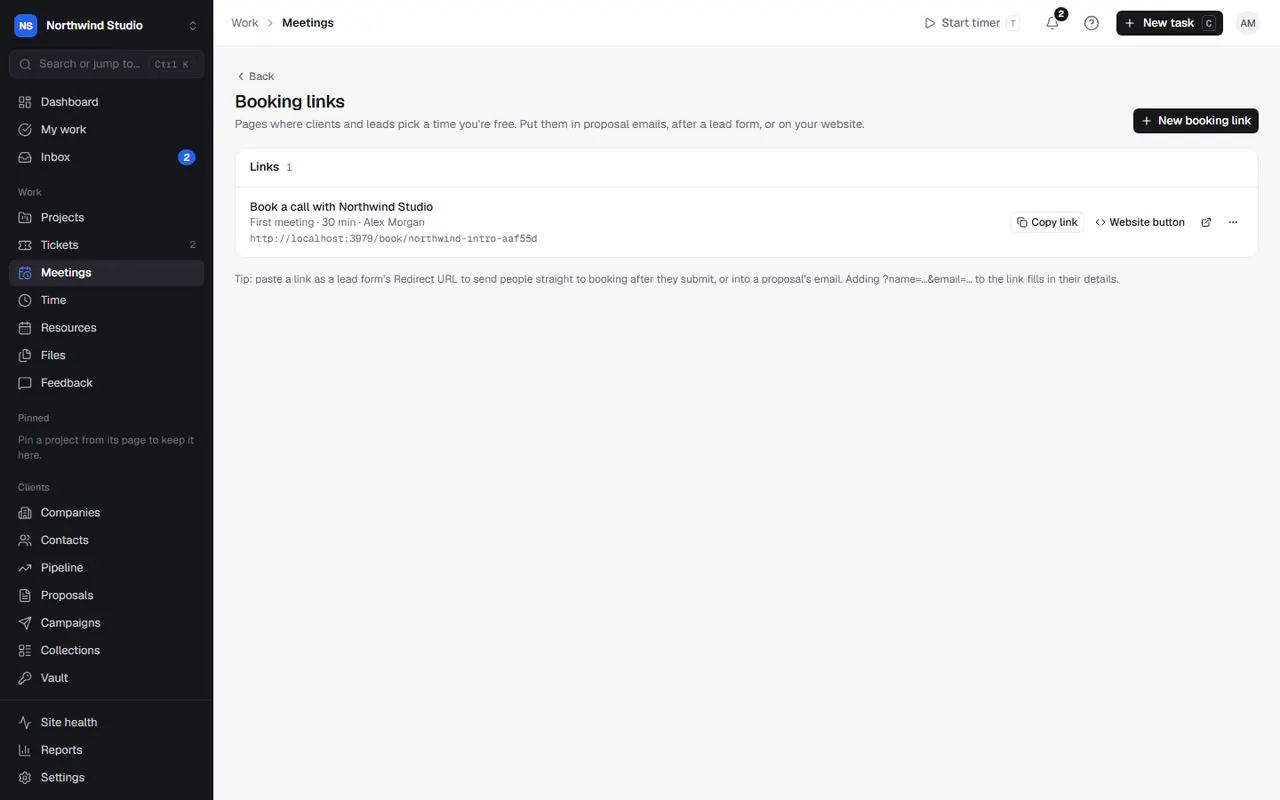
Switch a link off and the page says it isn't available. Deleting a link stops the page; meetings already booked stay.
What the person booking sees
They pick a time, enter their name and email (company, phone and a note are optional), and they're booked in. They get a calendar invite (from Google, or an email with a calendar file) and a link to change or cancel it.
New people are asked to press Confirm booking in their email, so you know it was them. Until then the meeting shows as Unconfirmed.
Settings in OpsDash
These open in OpsDash. You’ll be asked to sign in first if you aren’t already.
Related articles
- MeetingsSchedule meetings with agendas, send invites through Google Calendar or by email, take notes and action items, share a summary with the client, and log the time.
- Lead formsBuild a contact form for your website that creates a contact and a deal for every enquiry.
- Google Calendar and DriveEach person connects their own Google account to put meetings, tasks and time off on their calendar, log time from events, and attach Drive files.