Invoices
Create invoices by hand or from time and expenses, get them approved, send them, and track what's owed.
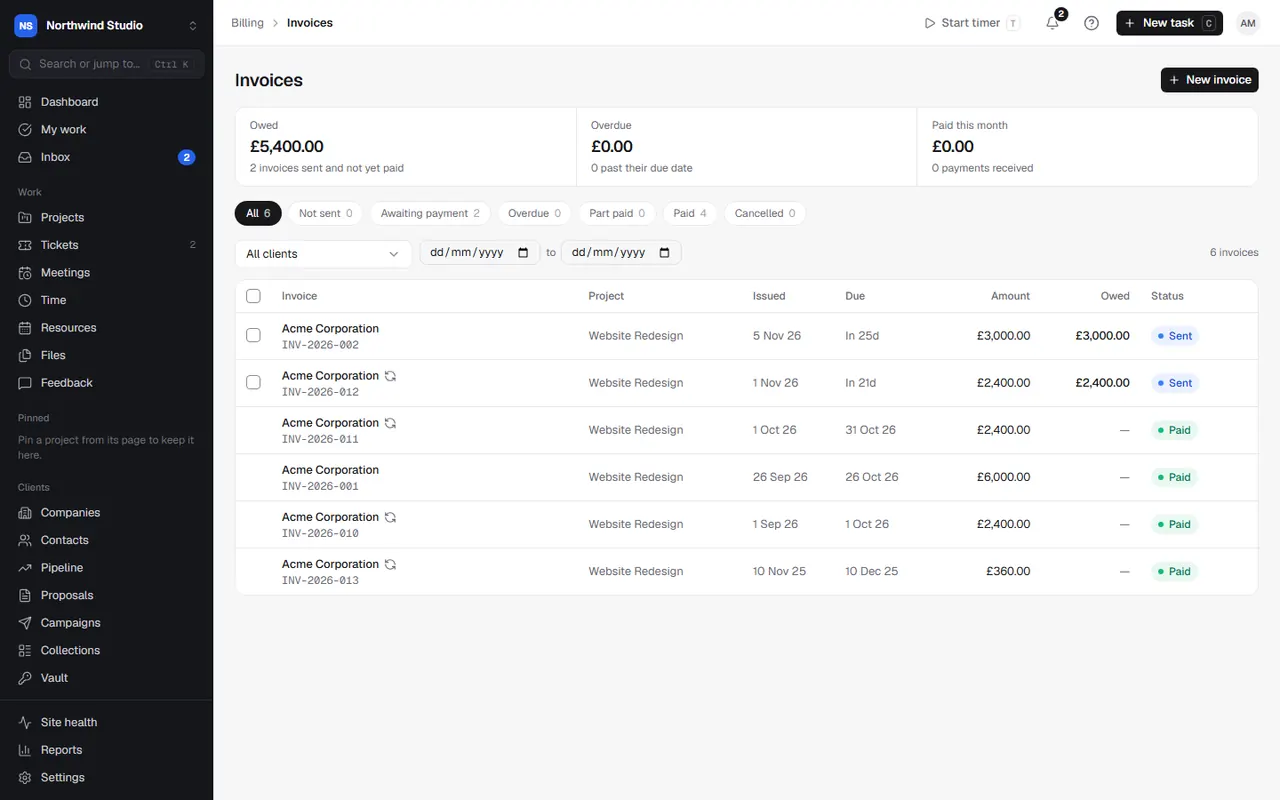
Invoices (under Billing in the sidebar) lists every invoice, with totals for what's owed, what's overdue and what was paid this month. Filter by client or status. Invoices synced to QuickBooks and invoices with reminders paused are marked.
Create an invoice
- Choose New invoice.
- Pick the company and who it's billed to, and optionally a project.
- Check the issue date, due date (from your payment terms), currency and an optional reference (such as their PO number).
- Choose the tax rate from your tax rates, or enter one by hand.
- Add line items: description, quantity and unit price. Or fill them in for you:
- Generate from time: billable time not yet invoiced, for a date range, as individual entries or grouped by task or person. Rates follow the usual order (the person's rate on the project, then the project, retainer, client, the person's default and your organisation's default) unless you enter one. Time an agreement already covers is left out, so it isn't billed twice. Rounding follows your billing rounding setting.
- Generate from expenses: billable expenses not yet invoiced.
- Add notes to the client (printed on the invoice) and internal notes (never shown).
- Save. It's a draft until you send it.
Invoices also start from quotes (Convert to invoice), payment schedules, agreements, renewals and recurring invoices.
Approve and send
Anyone who can create invoices can Submit for approval. Owners and admins Approve and Send invoices.
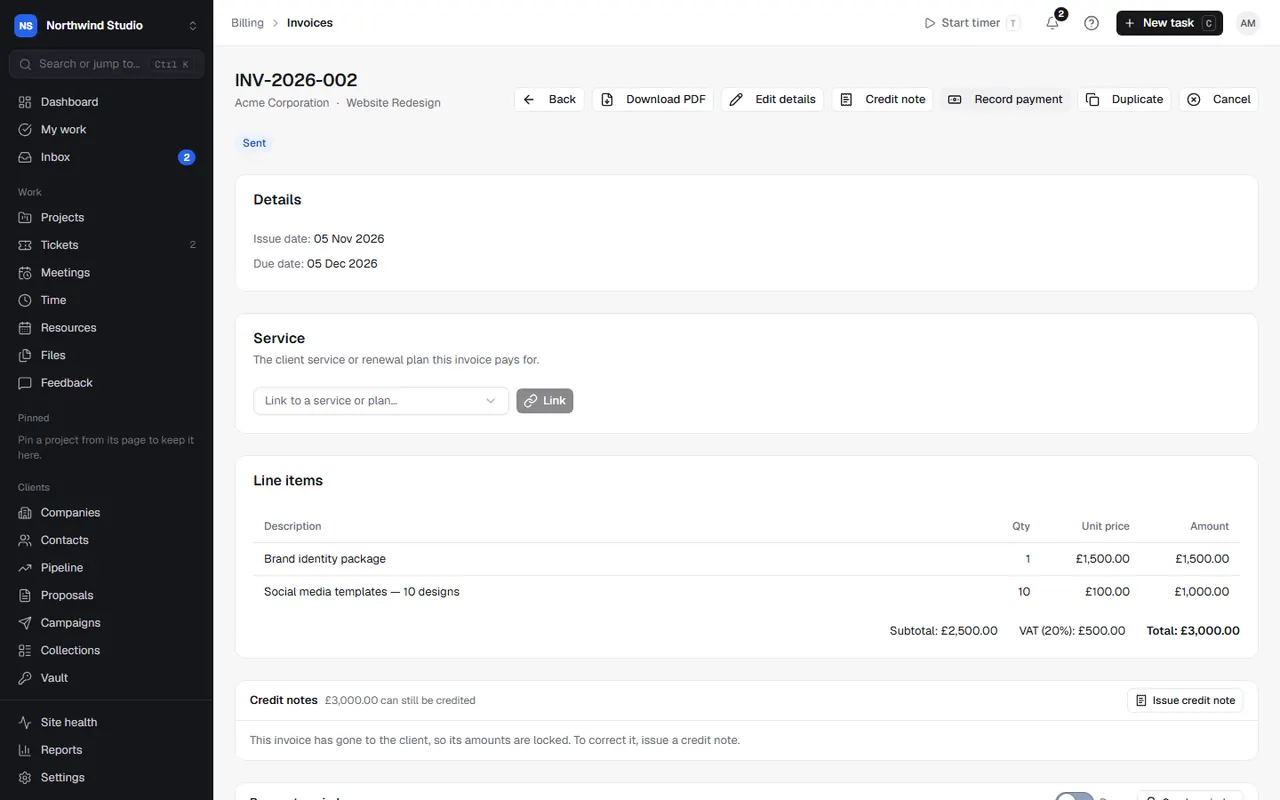
Send emails the invoice to the client's billing email (or billing contacts), with a PDF and, if you take card payments, a Pay now link. You can also Download PDF to send it yourself, or copy the pay link. Clients with portal access see their invoices in the portal too, if you show invoices there.
If the email doesn't go (for example your email settings need fixing), the invoice is still marked as sent and OpsDash tells you. Fix the problem, then choose Send again. Send again also re-sends an invoice a client has lost; its status doesn't change.
After it's sent
Once an invoice has gone to the client, its amounts are locked. You can still change the due date, reference and notes with Edit details. To correct the amounts, issue a credit note.
From an invoice you can also:
- Record payment (see payments),
- Duplicate it for a similar invoice,
- Cancel it: the invoice is marked cancelled and any time billed on it becomes unbilled again,
- Delete a draft for good.
Payment reminders
Each sent invoice shows its payment reminders: what's been sent and what's next. Pause reminders for one invoice (for example while it's disputed), or send one now. See payment reminders.
Your invoice settings
Numbering, currency, payment terms, VAT, rounding, the footer and your financial year are in Settings › Invoices & quotes. The bank details on invoices are in Settings › Bank & payment. Your business details and logo come from Business details and Branding.
Using QuickBooks? Invoices sync both ways: see QuickBooks.
Settings in OpsDash
These open in OpsDash. You’ll be asked to sign in first if you aren’t already.
Related articles
- Payments, credit notes and payment schedulesRecord payments, take card payments online, correct invoices with credit notes, and split projects into staged payments.
- Payment reminders and late payment chargesChase late payers automatically, be tougher on hosting invoices, add UK late payment charges, and pause reminders when needed.
- QuickBooksSync clients, invoices, credit notes and payments with QuickBooks Online both ways, and use QuickBooks' Pay now links.