Setting up the client portal
Turn on the portal, choose what clients see and can change, invite contacts, and decide how they sign in.
The client portal is where your clients see their projects, approve work, raise tickets, pay invoices and answer what's waiting on them. It carries your agency's logo, colours and name, not OpsDash's.
Turn it on and choose what clients see
Open Settings › Client portal. Under Portal settings:
- Portal enabled: the portal is open to the contacts you invite.
- Show project progress, Show invoices, Show quotes and Show time breakdown.
- Allow quote approval: clients can accept quotes in the portal.
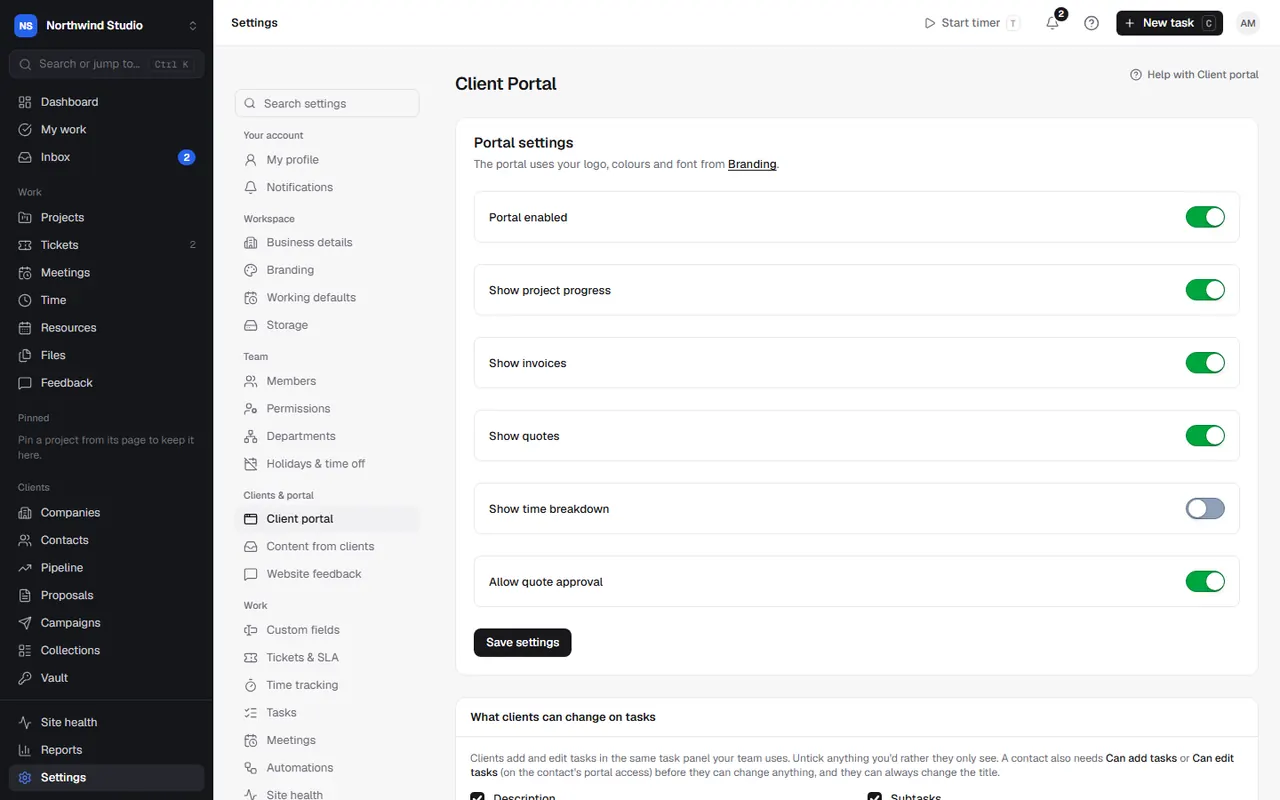
You can show more or less for one client in their Client settings (time as totals or entry by entry, and assurance).
What clients can change on tasks
Under What clients can change on tasks, choose whether clients Can add tasks and Can edit tasks, and untick any field you'd rather they only see (assignee, tags, due date, priority, subtasks, files and so on). A contact also needs task access on their own Portal tab.
Clients never see recurrence, internal comments, pull requests, agents or your team's time.
Invite a client
- Under Client access, choose Invite client.
- Pick the company and contact, and how long the link lasts (7 to 90 days).
- Send it. The contact gets an email with their portal link.
The list shows each contact's link, when they last used it and when it expires. Copy link, Extend link or Revoke as needed. You can also manage one contact's access from their Portal tab: see contacts.
How clients sign in
- Client portal passwords: choose whether clients must set a password. With it on, a client opens their invite once to choose a password, then signs in at your portal's sign-in page. You can try it with one client first from their Portal tab.
- Client portal sign-in (two-step sign-in): a second check, so a forwarded link or guessed password isn't enough. Contacts with an authenticator app use it; everyone else gets a 6-digit code by email, after their password (or after opening their link if they don't have a password yet).
Emails clients get from the portal
All of these start switched off. Turn each on in Settings › Client portal when you're ready:
- Weekly "waiting on you" email: on Monday mornings, each contact gets a list of what's waiting on them (content to send, quotes and proposals, contracts to sign, invoices to pay, tickets awaiting their reply). Only sent when something is waiting.
- Client inbox emails: your team's comments and mentions on their tasks, and their tasks moving.
- Proof emails: reviewers get an email when you send a design or PDF for sign-off.
Ticket replies, invoices, quotes and feedback have their own emails and aren't sent twice. Clients can turn these emails off for themselves, and nothing is sent to addresses that bounced or complained.
Clients' AI assistants
You can let a client's portal admins connect their own AI assistant (such as Claude) to their portal. It's off until you switch it on. See clients' AI assistants.
Make it look like yours
Your logo, colours and font come from Settings › Branding. You can hide "Powered by OpsDash" there too.
Help for your clients
Your clients have their own guides, written for them, under Help in their portal's menu. They show inside your portal with your branding and never mention OpsDash. You can read them here too: see the client portal guides.
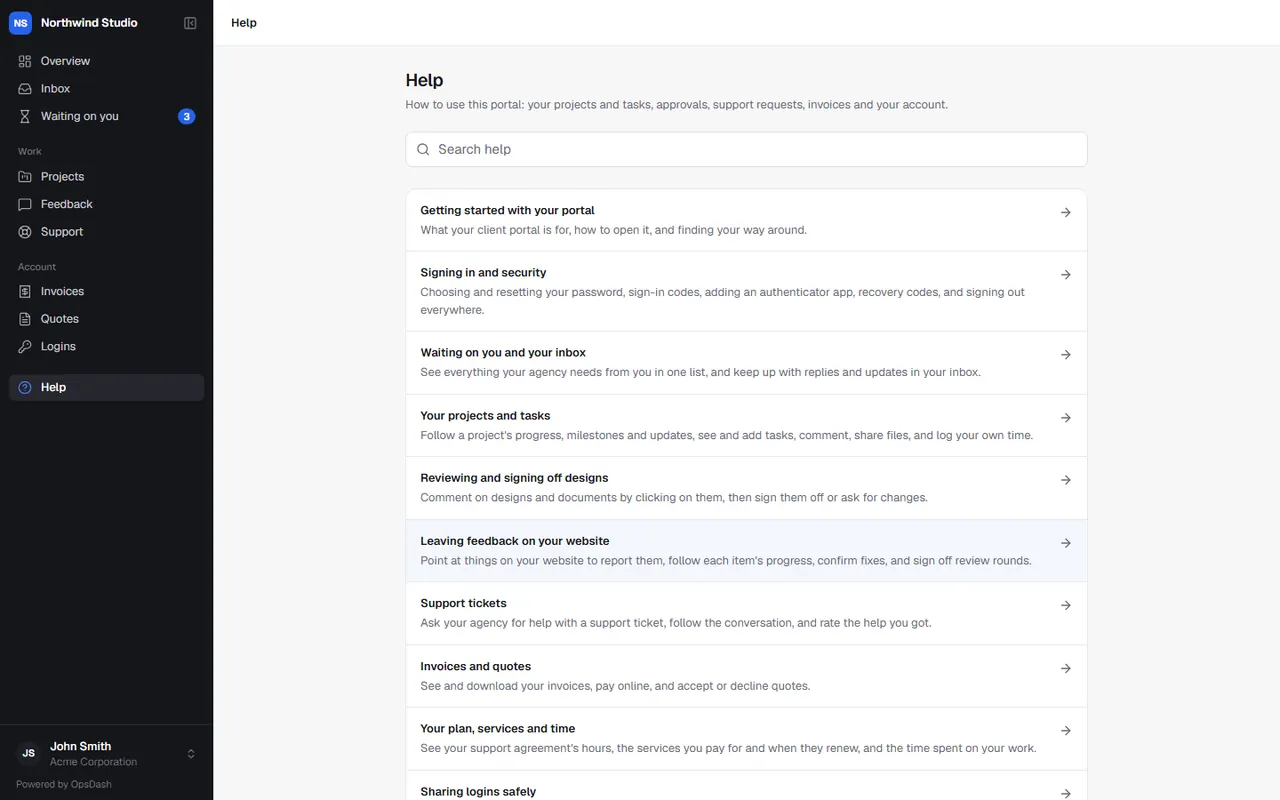
Settings in OpsDash
- Clients & portal › Client portal
- Security › Client portal passwords
- Security › Client portal sign-in
- Workspace › Branding
These open in OpsDash. You’ll be asked to sign in first if you aren’t already.
Related articles
- Contacts and groupsKeep the people at each client, give them portal access, and group them for campaigns.
- Getting started with your portalWhat your client portal is for, how to open it, and finding your way around.
- Clients' AI assistantsLet a client's portal admins connect their own AI assistant, limited to what they can see and do in their portal, and see or revoke their tokens.