Finding your way around
The sidebar, the top bar, search (Ctrl+K), keyboard shortcuts, your dashboard, My work and your inbox.
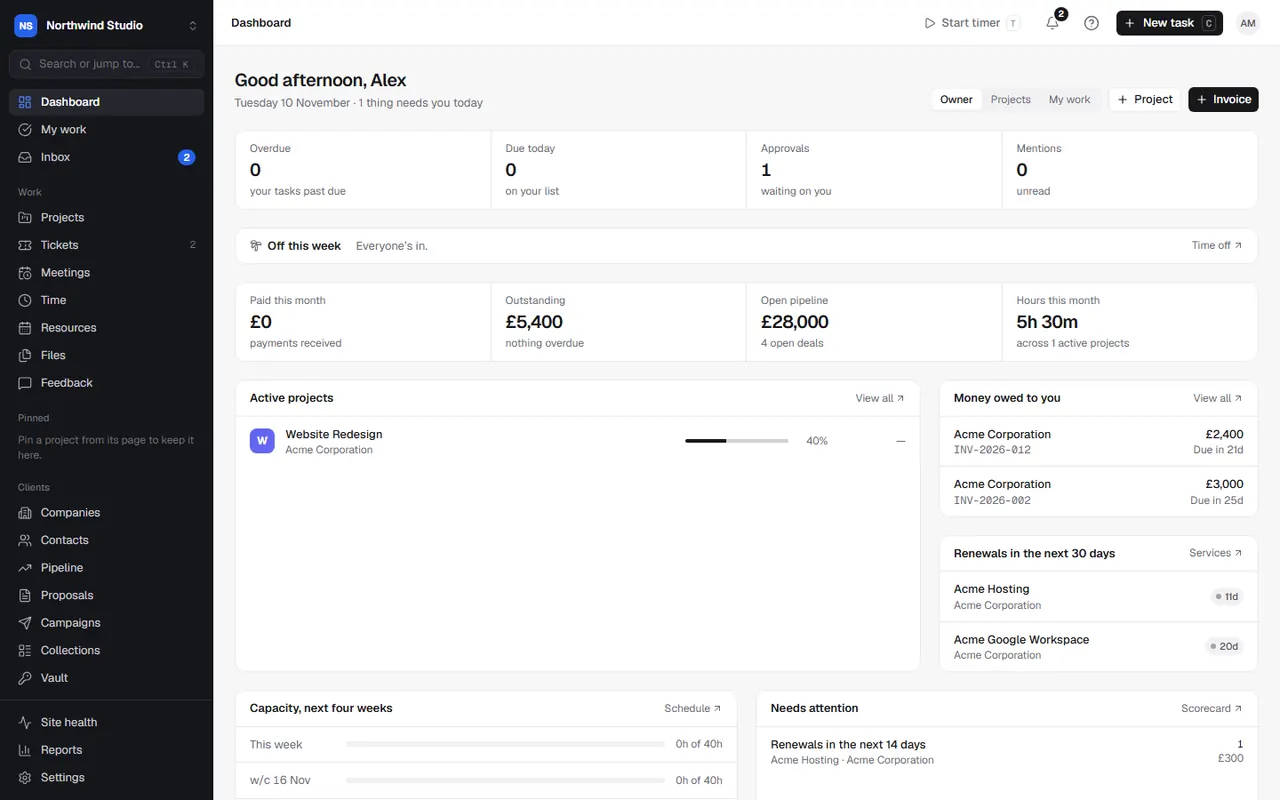
OpsDash has a dark sidebar on the left with every area, and a top bar with the things you need on every page.
The sidebar
The sidebar is grouped:
- Dashboard, My work and Inbox at the top: your own day.
- Work: Projects, Tickets, Meetings, Time, Resources, Files and Feedback.
- Clients: Companies, Contacts, Pipeline, Proposals, Campaigns, Collections and Vault.
- Billing: Invoices, Agreements and Services.
- Site health, Reports and Settings pinned at the bottom.
Areas with more than one page (Time, Resources, Pipeline, Invoices and others) show their pages underneath while you're in them. Collapse the sidebar with the button beside your logo to get more room.
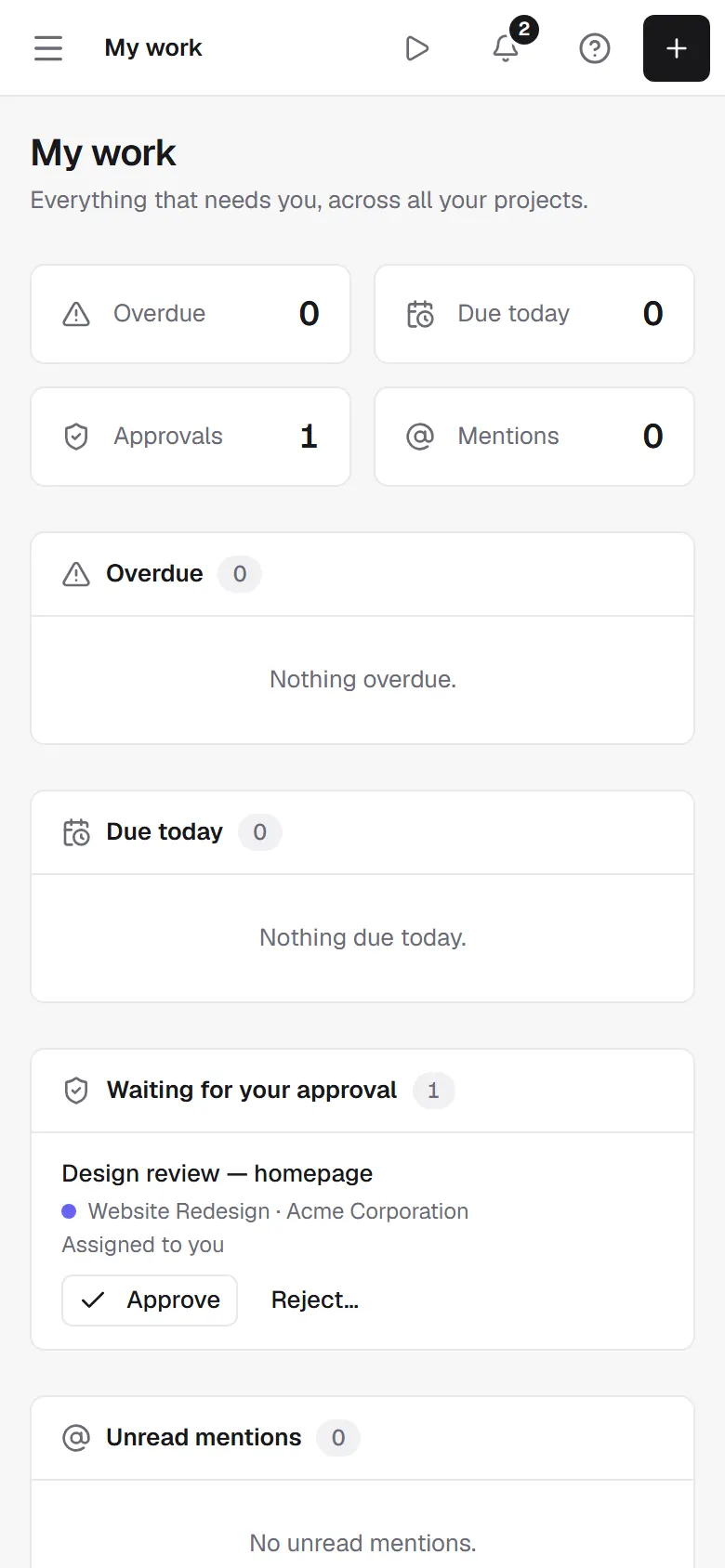
On a phone, the sidebar opens from the menu button at the top left.
The top bar
From left to right:
- Where you are (for example Clients › Companies). Click a part to go back up.
- The timer, when one is running. Click it to stop it or switch task. See tracking time.
- The bell: your notifications.
- The help button (question mark): opens the help article for the page you're on, in a new tab.
- New task, to add a task to any project.
- Your account menu: Settings, the help centre, contacting support, and signing out.
Search and jump
Press Ctrl+K (⌘K on a Mac), or click Search or jump to… in the sidebar. Start typing to:
- jump to any page ("timesheet", "aged debtors"),
- open any settings page or section ("VAT", "two-factor"),
- find companies, contacts, deals, projects, tasks, invoices, quotes, proposals, contracts and time entries by name or number.
Use the arrow keys and Enter, or click.
Keyboard shortcuts
| Keys | What they do |
|---|---|
| Ctrl+K / ⌘K | Search and jump |
| C | New task (when you're not typing in a box) |
| / | On help pages, jump to the help search |
| Esc | Close a panel, menu or dialog |
Your dashboard
The dashboard greets you with your day: what's Overdue, Due today, Approvals waiting for you and Mentions. Below that are your tasks, this month's numbers (paid, outstanding, open pipeline and hours), active projects, money owed to you, and renewals in the next 30 days. What you see depends on your permissions: people without access to finances don't see money figures.
My work and Inbox
- My work lists everything assigned to you across all projects, grouped as Overdue, Due today, Next 7 days and No due date, plus approvals and mentions. See My work.
- Inbox holds your notifications: tasks assigned to you, comments and mentions, approvals, ticket replies and more. Choose how you hear about each kind in Settings › Notifications.
Settings in OpsDash
These open in OpsDash. You’ll be asked to sign in first if you aren’t already.