Schedule, capacity and contractors
Book people onto projects and deals, see who has room for more work, forecast the weeks ahead, and add freelancers.
Resources answers "who's working on what, and who has room?" It weighs bookings, task estimates and the pipeline against each person's contracted hours, less time off and bank holidays.
Schedule
Resources › Schedule shows who is working on what, week by week (2 or 8 weeks at a time). Filter by department or skill, and include contractors.
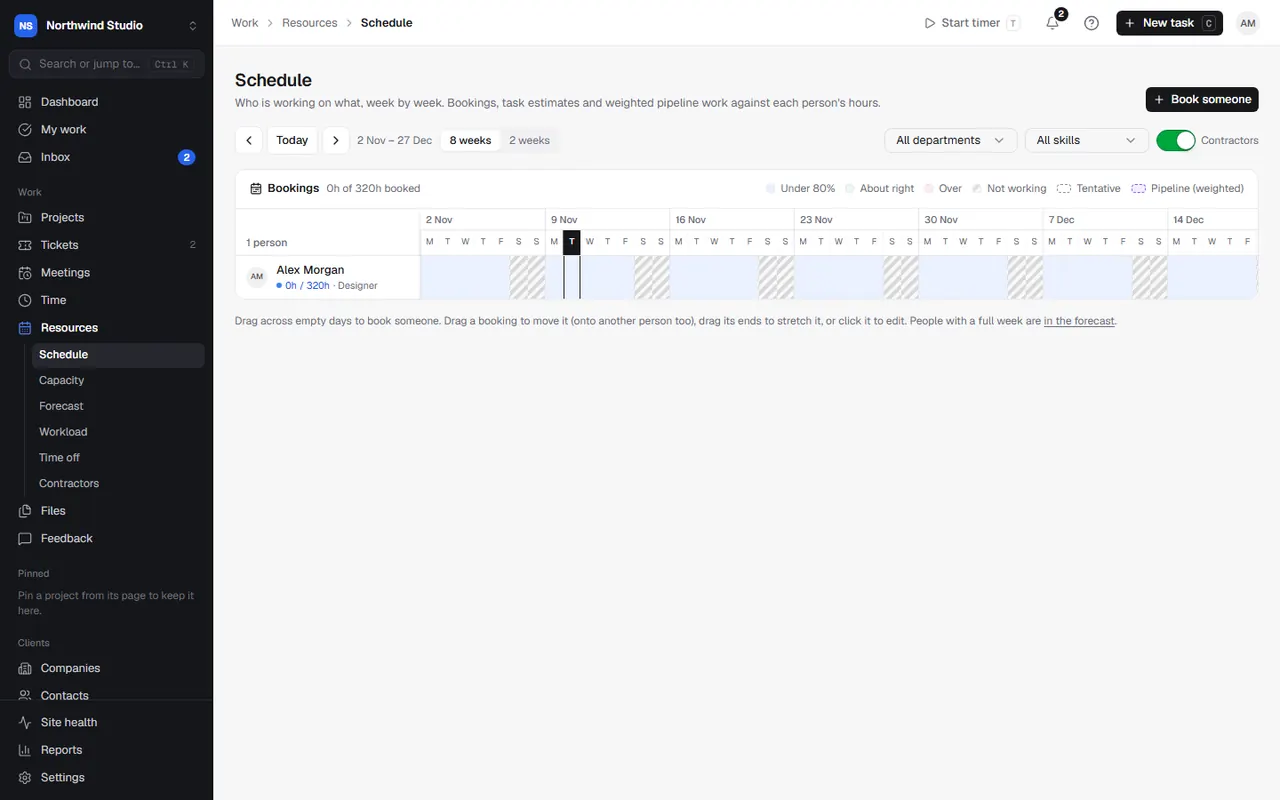
To book someone, choose Book someone:
- Who, and what it's for: a project (and optionally a task), or a deal (pencilled in).
- The start and end dates, and hours (as hours a day or total hours).
- Tick Tentative if it isn't confirmed yet: it shows striped but still counts in full.
A booking on a deal is pencilled in: the forecast counts it at the deal's probability. Winning the deal confirms it; losing it takes it off the schedule.
Each person also sees Your schedule: what they're booked on over the next four weeks.
Capacity
Resources › Capacity shows, for this week, the next four weeks or this month, each person's capacity, what's booked, task estimates, time tracked, what's still available, and their utilisation. People at 90% or more are flagged at risk.
Forecast
Resources › Forecast looks 8 to 12 weeks ahead: capacity against booked work, task estimates and the pipeline (weighted by probability). Group by everyone, department or skill to see where you're short, and how many hours you'd need to find.
Workload
Resources › Workload shows each person's assigned tasks across all projects against their capacity. A project's own Workload view does the same for one project.
Contractors
Resources › Contractors is for the freelancers and contractors you use. Choose Add contractor with their name, email, business, department, skills, available hours a week, working days and cost to you (per hour or per day; only owners, admins and people who see financial reports can see it).
You can book contractors as soon as they're added. When you're ready, invite them to sign in: they see only the projects and tasks they're assigned to or booked on, their own time and bookings, and logins you share with them. Never rates or budgets. See the contractor work area.
Turn off access signs them out straight away; their time and bookings stay. If they'd seen vault logins, an offboarding checklist is made.
Where capacity comes from
Each person's contracted hours, working days, skills and department are on their profile (Settings › Members). Your working days and hours are in Settings › Working defaults.
Settings in OpsDash
These open in OpsDash. You’ll be asked to sign in first if you aren’t already.
Related articles
- Time off and holidaysRequest holiday, sick leave or time off in lieu, approve requests, and set bank holidays, closures and the holiday year.
- Your contractor work areaFor freelancers and contractors: accept your invite, see your tasks, projects and bookings, use shared logins, and keep your account secure.
- Deals and the pipelineTrack sales from enquiry to won, chase next steps, spot opportunities with existing clients, and let a won deal set up the work.