Team members and invitations
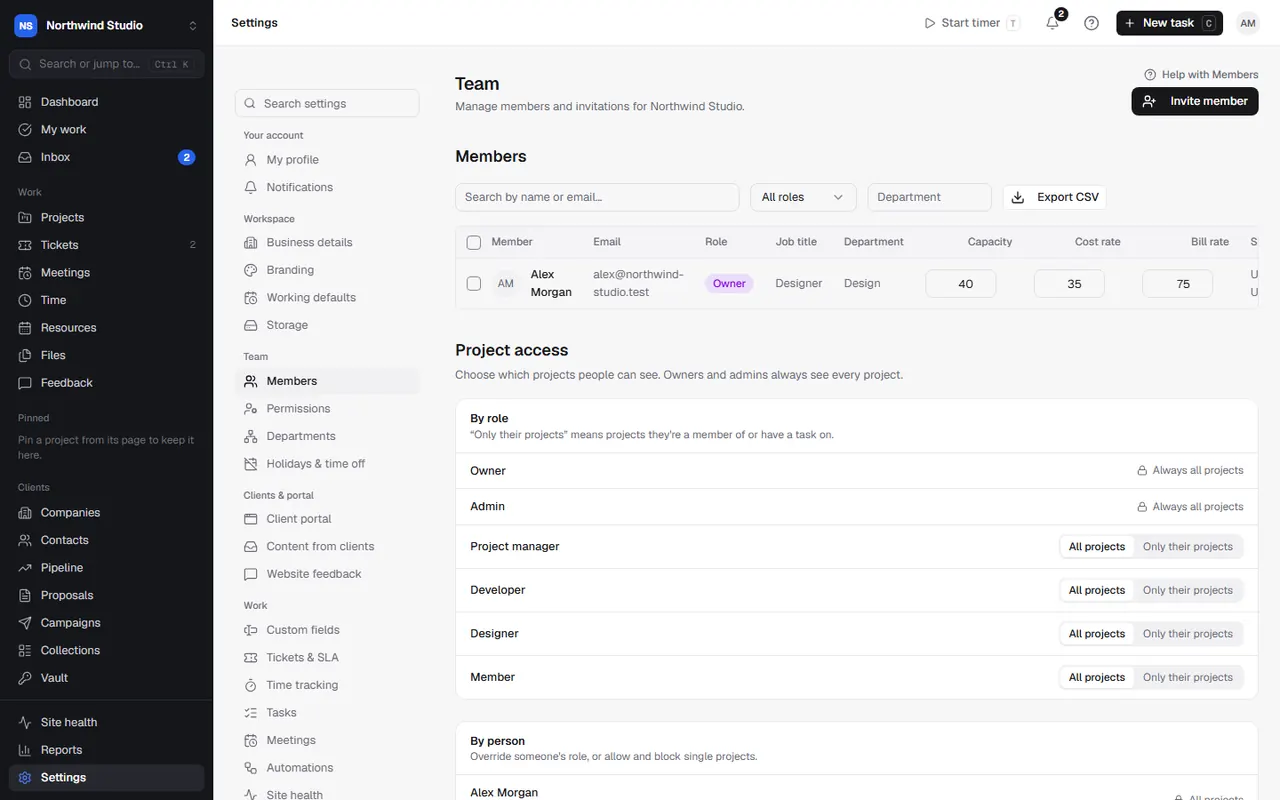
Invite people by email or link, choose their role, set their capacity, rates and staff cost, and remove people who leave.
Everyone at your agency who uses OpsDash is a member of your workspace. Manage them in Settings › Members (owners and admins).
Roles
- Owner: everything, including changing other owners. Every workspace has at least one.
- Admin: everything except changing owners. Admins see every project and can change workspace settings.
- Member: day-to-day work. What they can see and do beyond that depends on project access and permissions.
Freelancers you book on the schedule are contractors, managed under Resources › Contractors, not here.
Invite people
- Invite member: enter their email and choose Member or Admin. They get an email invitation to sign up (or sign in) and join.
- Invite via link: make a shareable link that lets anyone with it join as the role you choose, until it expires (7 to 90 days) or you revoke it. Regenerate makes a new link and stops the old one.
Pending invitations lists invitations not yet accepted: Copy link to send it yourself, Resend or Revoke them. If an invitation email doesn't go, OpsDash says so, and you can copy the link from here.
People you invite can create their account from the invitation link even while sign-up is invite-only.
Each person's profile
Choose View profile & rates on someone in the list:
- Profile: name, job title, department, capacity (hours a week), working days, holiday allowance (days a year) and skills. These drive the schedule, capacity, missing time and time off.
- Staff cost: what they cost the business an hour, worked out from salary (with employer on-costs as NI and pension, or one figure) or set by hand. It's the cost rate in profitability reports. Only owners, admins and people who see financial reports can see it.
- Rates: their default bill rate, and project rate overrides for particular projects. Time is billed at the first rate that's set: their rate on the project, the project rate, the retainer, the client rate, their default, then your organisation's default.
The table can be exported as CSV, and you can update capacity and rates from it.
Change a role
Choose Change role. Making someone an owner asks you to confirm.
Remove someone
Choose Remove. Their assigned tasks may need reassigning. If they had seen vault logins, an offboarding checklist is made so you can change those passwords: see the vault.
AI agent connections made by someone stop working when they're no longer an owner or admin. See keeping tokens safe.
Settings in OpsDash
These open in OpsDash. You’ll be asked to sign in first if you aren’t already.
Related articles
- Project access and permissionsChoose which projects people can see, and what each role and person can do beyond that: finances, the vault, WordPress logins, campaigns and settings.
- DepartmentsGroup your team into departments such as Design and Development, so work can be routed, grouped and planned by department.
- The vault (client logins)Keep client logins encrypted, share them safely with clients, contractors or by one-time link, and change passwords when someone leaves.