Workspace settings
Business details, branding (app, portal and emails), working defaults and business hours, and storage.
Your organisation's details, look and storage. Owners and admins change these.
Business details
Settings › Business details: your legal and trading names, company and VAT numbers, address, phone, website and social links. They're used on invoices, quotes, contracts, emails and the client portal.
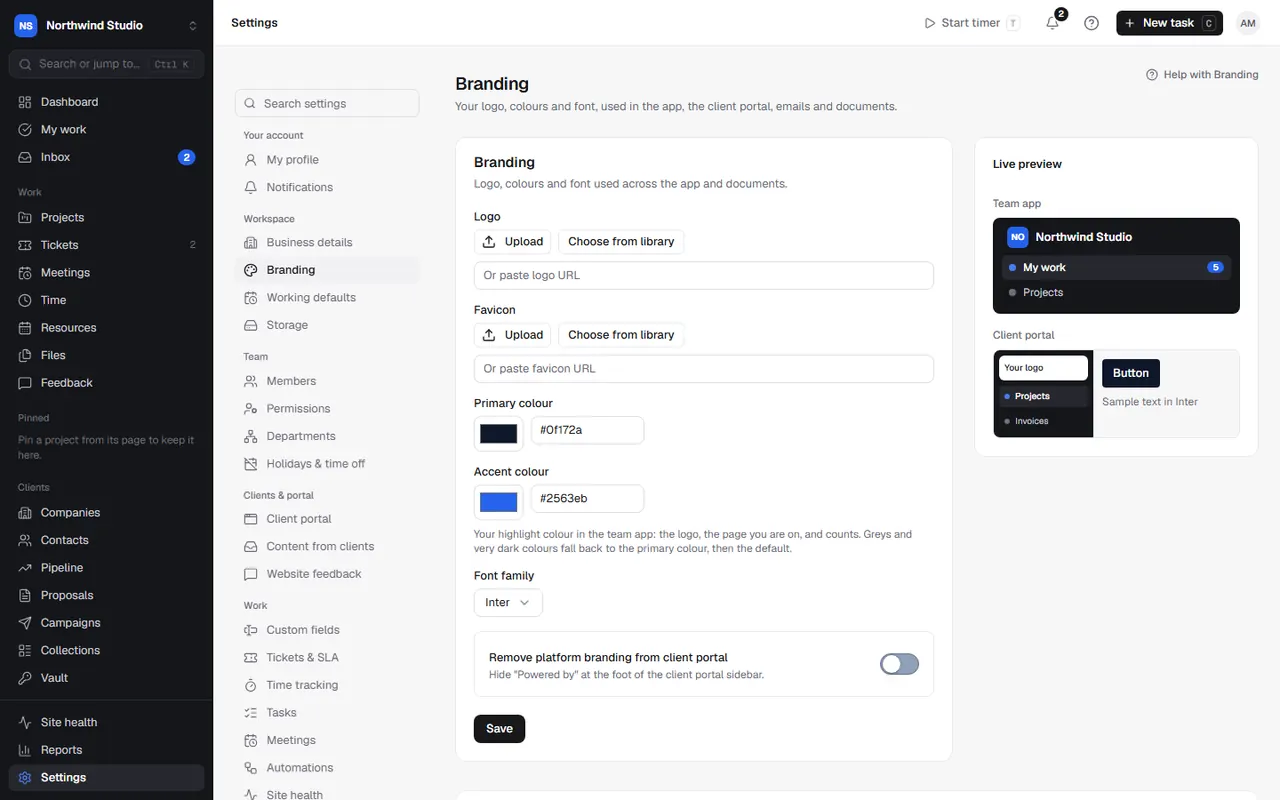
Branding
- Logo, colours and font: your logo and favicon, primary colour, and accent colour (your highlight colour in the team app: the logo, the page you're on, and counts; greys and very dark colours fall back to the primary colour). Choose a font family. A live preview shows the team app, client portal and an invoice.
- Remove platform branding from client portal: hides "Powered by OpsDash" at the foot of the portal sidebar.
- Email branding: an HTML header and footer and an accent colour for outgoing emails.
Working defaults
- Working days and hours per day, used for capacity and estimates.
- Default hourly rate, used for time when no person, project, retainer or client rate is set.
- Bank holidays a year: paid bank holidays taken off the hours people are available when working out staff cost (8 for England and Wales; 0 if holiday allowances already include them).
- Business hours: start, end and timezone, used by the ticket SLA clock when it counts business hours only.
Bank holidays and closure days themselves are in Holidays & time off.
Storage
Settings › Storage shows what your organisation stores (client files, the media library and feedback widget files) and how much space it uses. Uploads go straight from the browser to storage: attachments up to 500 MB, receipts and contract PDFs up to 50 MB, media images up to 20 MB. Owners can check the storage connections.
Settings in OpsDash
These open in OpsDash. You’ll be asked to sign in first if you aren’t already.
Related articles
- Your first week checklistThe settings and connections worth doing in your first week, in a sensible order, with links to each.
- Money settingsInvoice and quote numbering, defaults, rounding and footer; reports; payment reminders; services and renewals; tax rates; bank and online payment.
- Setting up the client portalTurn on the portal, choose what clients see and can change, invite contacts, and decide how they sign in.