Tickets and SLAs
Handle client requests as tickets, reply or add internal notes, track SLA targets, turn tickets into tasks or deals, and collect satisfaction ratings.
A ticket is a request from a client (or a colleague): "the contact form isn't sending", "can you change the opening hours on the site?". Tickets arrive by email (through the support mailbox), from the client portal, or are logged by hand.
The tickets list
Tickets shows every request, with counts for Open, Breaching soon (close to or past the SLA), Breached, average first response time and satisfaction.
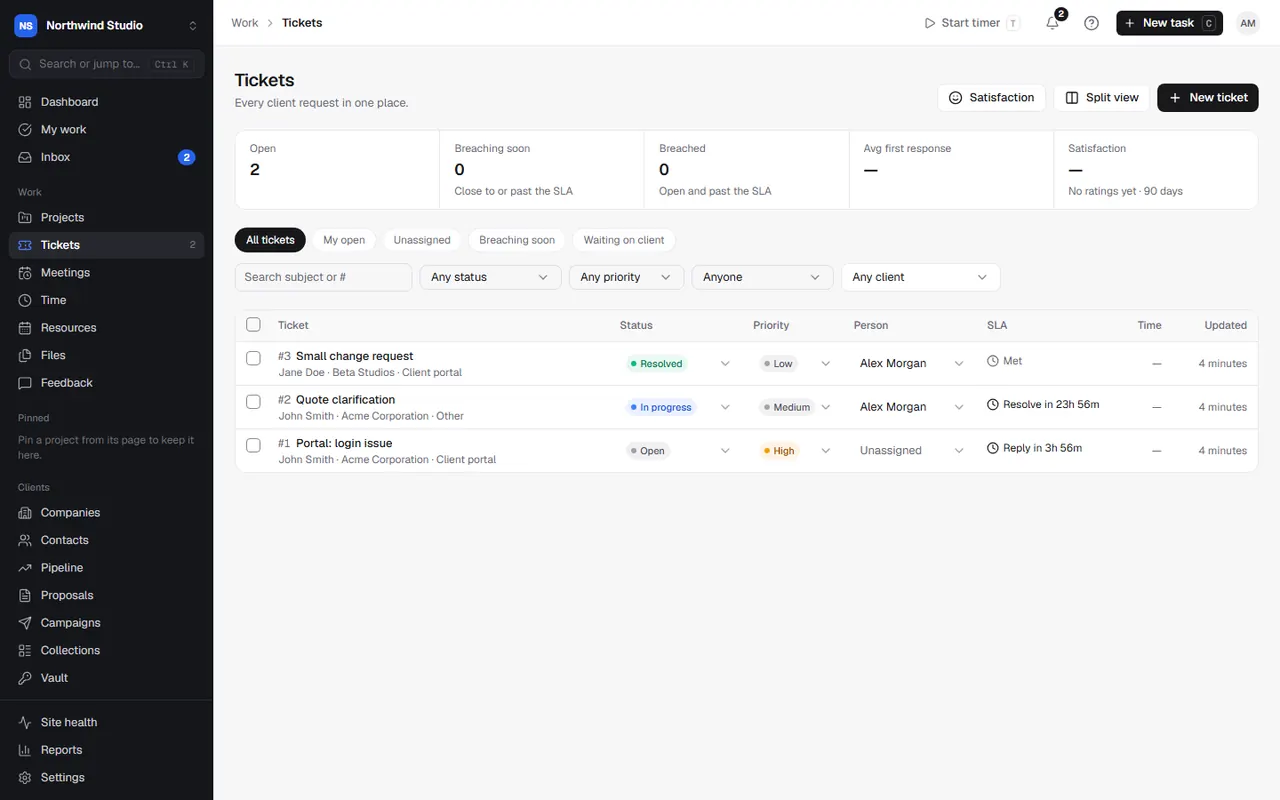
- Filter by status, priority, person, client or client contact, or search. Save filters as your own views.
- Split view shows the list and the selected ticket side by side.
- Tick several tickets to update or close them together.
- On a phone, tickets show as cards.
Log a ticket
Choose New ticket for a request that came in by phone or in person:
- Subject and what they said, with attachments (up to 500 MB each).
- From: the company and the contact who asked (or a team member, for your own company), and the project.
- How it came in: the channel and when it was received. Response times count from when they asked.
- Details: category, priority and due date.
- Who handles it: a person and/or a team, and anyone copied in. These are filled in from the company's ticket defaults.
Working a ticket
Open a ticket to see the conversation and its properties: status, priority, due date, person, team, category and channel.
- Reply emails the requester (and anyone copied in) from your sending address. Choose Canned to drop in a saved answer.
- Internal note is for your team only.
- Resolve when it's done.
- Log time on the ticket from its time panel (Timer or Add). Agreement coverage shows if the time counts against a retainer.
- A ticket can be handled by a client contact: they work on it in their portal and get your public replies by email.
If the sender isn't a contact yet, the ticket says New sender and offers Create contact.
Turn a ticket into a task or deal
- Create task: make a task for the work in a project. The task is linked to the ticket; when it's done, whoever has the ticket is told so they can resolve it.
- Make a deal: a sales enquiry carries on as a deal in the pipeline. See deals.
SLAs
An SLA policy sets targets for first response and resolution (in minutes) for certain priorities. Set them up in Settings › Tickets & SLA with Add policy, and mark one as the default for priorities not listed.
Each ticket shows a countdown to its first reply and resolution, and is marked SLA breached if it misses.
The SLA clock setting chooses whether only business hours count (from Working defaults, skipping bank holidays and closures) or the clock runs around the clock. The clock always stops while a ticket waits on the client, and while it's resolved.
Categories and canned replies
- Ticket categories say what a ticket is about (bug, content change, hosting, billing, question). Archived categories stay on old tickets but can't be picked.
- Canned replies are saved answers anyone can drop into a reply. Merge fields such as
{{contact.firstName}}and{{agent.name}}fill in the client's and your details.
Both are in Settings › Tickets & SLA. Changing them needs the SLA settings permission.
Satisfaction ratings
Turn on Ask clients to rate resolved tickets in Settings › Tickets & SLA. When a client's ticket is resolved, the requester gets one email with three one-click buttons (good, okay, bad) and can add a comment. Clients can also rate resolved tickets in their portal. Not sent for your own company's tickets.
Tickets › Satisfaction shows the average (good 100, okay 50, bad 0) by person and by client, with recent ratings.
Settings in OpsDash
These open in OpsDash. You’ll be asked to sign in first if you aren’t already.
Related articles
- The support mailboxConnect your support email inbox so new mail becomes tickets, matched to the client who sent it, with replies threaded back on.
- Support ticketsAsk your agency for help with a support ticket, follow the conversation, and rate the help you got.
- Deals and the pipelineTrack sales from enquiry to won, chase next steps, spot opportunities with existing clients, and let a won deal set up the work.