Tracking time
Start and stop timers, switch task without losing time, log time by hand or from your calendar, and edit entries.
Time in OpsDash is logged against a project (and usually a task or ticket). It feeds invoices for hourly work, agreement hours, project budgets, profitability and utilisation reports.
Timers
- Start a timer from a task or ticket, or from the timer in the top bar: pick a recent piece of work or choose Start timer. Press T to start or stop.
- While it runs, the timer shows in the top bar. Click it to see options:
- Stop logs the time.
- Switch stops this timer and starts one on something else.
- Change task (keeps the time) moves the running timer onto other work, keeping the time so far and the start time. Useful when you started the timer on the wrong task.
- Tick or untick Billable for the work.
Logging time by hand
On Time › Entries, choose Add entry. Enter the date, the duration (for example 1h 30m, 90m or 1.5h), the project and task, a description, whether it's billable, and optionally an hourly rate for this entry.
From your calendar
If you've connected Google Calendar and turned on Show my calendar events as suggestions (in My profile › Your calendars), today's events appear in the timer and the week's on your timesheet. Choose Log calendar event, check the project and task, and it's logged. Repeating events are guessed the same way next time. All-day and declined events are left out, and you can leave out events marked free.
The entries list
Time › Entries lists time by day. Filter by project and billable or non-billable. Each entry shows who, what and how long, with tags such as:
- Billed: already on an invoice. Deleting it doesn't change the invoice.
- Auto-stopped: a timer that was stopped automatically (see below).
- Calendar: logged from a calendar event.
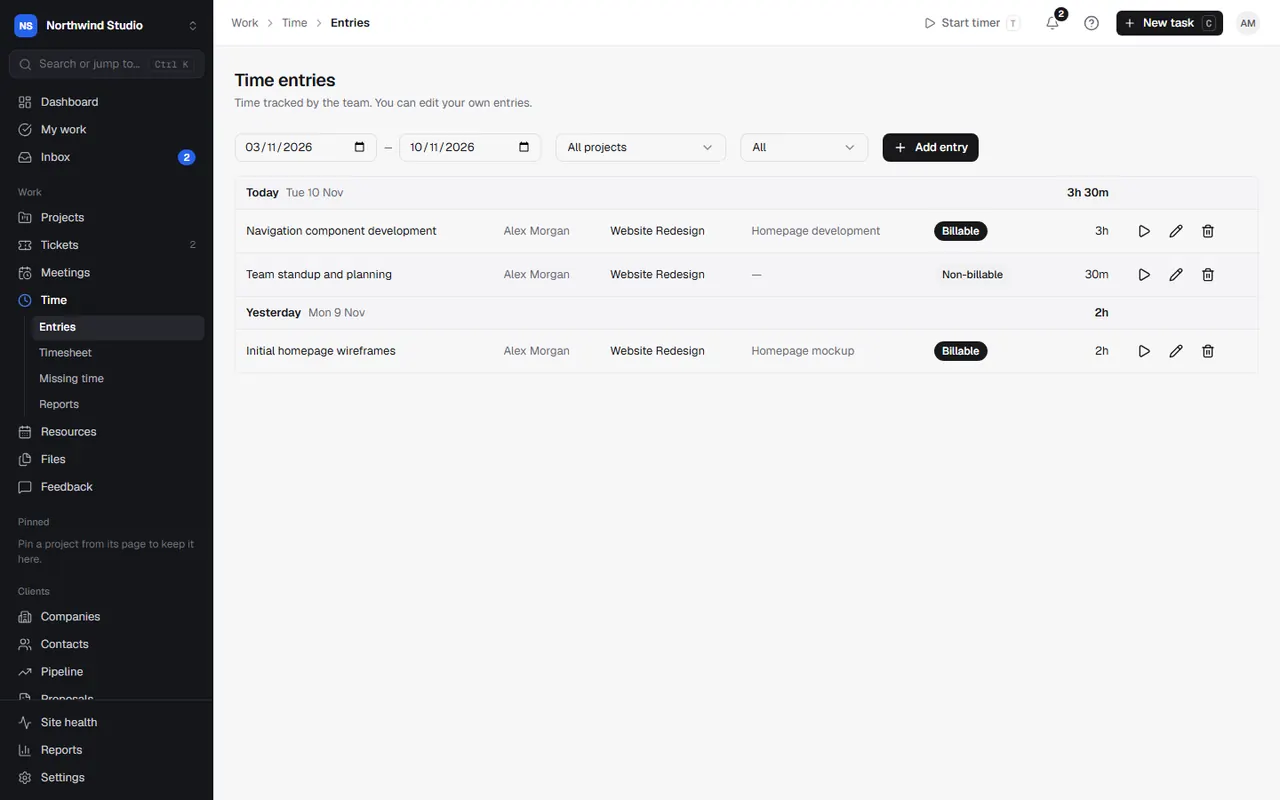
Use Restart to start a timer on the same work again, Edit to change an entry, or delete it.
Timers left running
Owners and admins can set, in Settings › Time tracking:
- a notification when a timer has been going for a number of hours (and optionally when one is still going after midnight),
- Stop timers automatically at a set time. The entry is logged up to then, marked Auto-stopped, and the person is told.
Reminders to log time
Also in Settings › Time tracking, and off until switched on: a daily reminder for anyone who has logged less than expected that day, and a weekly reminder on Mondays for anyone whose last week came up short. Expected hours come from each person's contracted hours over their working days, less bank holidays, closures and approved time off. Reminders appear in OpsDash, and by email too if you turn that on.
Settings in OpsDash
These open in OpsDash. You’ll be asked to sign in first if you aren’t already.
Related articles
- Timesheets, missing time and time reportsFill in a weekly timesheet, see who's behind on their hours, and report on time by client, person, project or task.
- InvoicesCreate invoices by hand or from time and expenses, get them approved, send them, and track what's owed.
- Google Calendar and DriveEach person connects their own Google account to put meetings, tasks and time off on their calendar, log time from events, and attach Drive files.