Importing from monday.com
Bring your monday.com boards across as projects, with items as tasks, updates as comments and files attached, then move logins into the vault.
Moving from monday.com? The import brings each board into an OpsDash project: items become tasks, update threads become comments (with replies), and files on updates, items and file columns are copied onto the tasks. You can run it again later to pick up anything new.
Importing needs the Import from monday.com permission (owners and admins have it).
Before you start
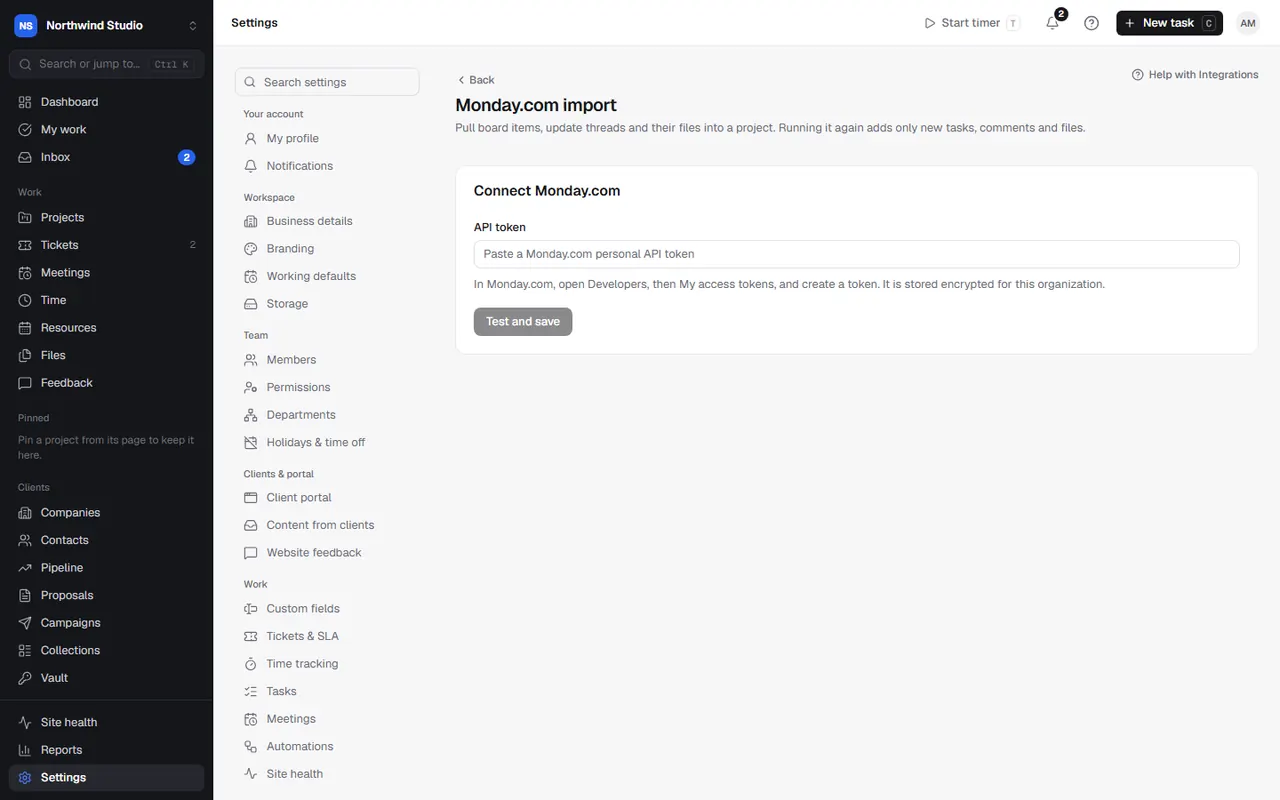
You need a monday.com personal API token: in monday.com, open Developers, then My access tokens, and create one. OpsDash stores it encrypted for your organisation and only reads from monday.
You'll also want your team invited first, so tasks can be assigned to the right people (matched by email address), and your companies added, so you can put each board's project under the right client.
Connect monday.com
- Go to Settings › Integrations › monday.com.
- Paste the API token and connect. It says who you're connected as.
Import a board
- Pick a board from the list.
- Choose where it goes: a new project (give it a name and client) or an existing project.
- Map the board's statuses to the project's statuses. A status that doesn't exist yet can be created (Create this status). A board with no status column uses To Do, In Progress, Review and Done.
- Choose Start import.
The import runs in batches and shows its progress: tasks and comments first, then files ("Files: X of Y"). If it stops part-way, choose Resume.
What comes across
| monday.com | OpsDash |
|---|---|
| Board | Project |
| Group | A tag on each task |
| Item and subitem | Task and subtask |
| Status column | Task status (Done, Complete and Completed count as closed) |
| Person column | Assignee, matched by email; anyone not matched is named in the description |
| Date column | Due date |
| Priority column | Priority (Low, Medium, High, Urgent or Critical) |
| Other columns | The task description |
| Updates and replies | Comments and replies, named after their monday.com author |
| Files | Copied onto the task, linked from their comment |
Files over 500 MB, file types tasks don't accept, and files gone from monday are skipped with a note. Files that fail are retried next time.
Running it again
Previous imports lists each board you've brought across. Import again adds only new tasks, comments and files. Import files copies a board's files onto tasks already imported, without importing tasks again (useful for boards moved before files were supported).
Passwords in imported tasks
If your monday boards kept logins in columns, an early import may have copied them into task descriptions, where anyone on the project can read them. Passwords in imported tasks lists those tasks and columns (only the column names are shown). First bring the logins into the vault with Vault › Import › monday board (see the vault), then choose Remove: the lines come out of each description and are blanked in the task's edit history. This can't be undone, so check the logins are in the vault first.
Old overdue tasks
Imported boards can bring lots of old tasks with past due dates. In Settings › Tasks you can stop overdue alerts for old tasks, completed projects and projects on hold.
Settings in OpsDash
These open in OpsDash. You’ll be asked to sign in first if you aren’t already.
Related articles
- ProjectsCreate a project, choose how it's organised, and use its overview, settings, status updates and templates.
- The vault (client logins)Keep client logins encrypted, share them safely with clients, contractors or by one-time link, and change passwords when someone leaves.
- Your first week checklistThe settings and connections worth doing in your first week, in a sensible order, with links to each.