Quotes
Price smaller jobs with a quote, send it for acceptance, and turn an accepted quote into an invoice or a project.
A quote prices a smaller job: a few line items, an introduction and your terms. For bigger projects with a scope, timeline and team, use a proposal.
Create a quote
- Go to Invoices › Quotes and choose New Quote, or Quote or proposal › New quote on a deal.
- Give it a title and the company (and optionally a project), with an issue date and valid until date.
- Add an optional introduction, the line items, the tax rate, and optional terms. Internal notes stay with your team.
- Save.
If it's for a deal, the form says so: when the client accepts the quote, the deal is won with its value.
Approve and send
Like invoices, a quote can be submitted for approval before it's sent. Choose Send to email it to the client. If quote approval is allowed in the portal, they can accept it there; otherwise choose Mark accepted or Mark declined when they tell you.
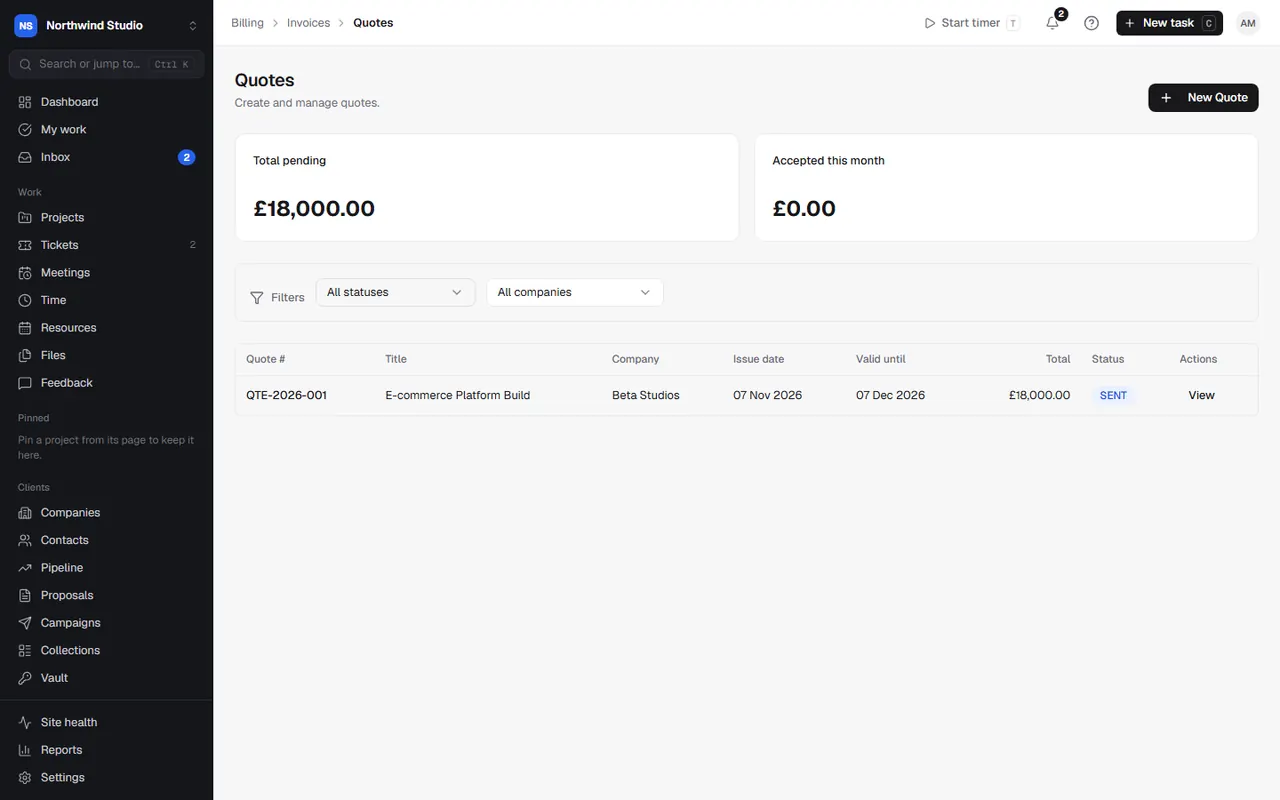
The list shows each quote's status: Draft, Pending approval, Approved, Sent, Viewed, Accepted, Declined, Expired or Cancelled, with totals pending and accepted this month.
When it's accepted
From an accepted quote:
- Convert to invoice makes an invoice with the same lines.
- Convert to project makes a project with a name, billing type, budget and dates.
- Set up the work runs the deal's When won playbook if the quote came from a deal.
Duplicate a quote to reuse it for another client, and Download PDF to send it yourself.
Settings in OpsDash
These open in OpsDash. You’ll be asked to sign in first if you aren’t already.
Related articles
- Deals and the pipelineTrack sales from enquiry to won, chase next steps, spot opportunities with existing clients, and let a won deal set up the work.
- Proposals and contractsBuild proposals from blocks, send them for acceptance, and send contracts for e-signature with an audit trail.
- InvoicesCreate invoices by hand or from time and expenses, get them approved, send them, and track what's owed.