Campaigns, sequences and templates
Send email campaigns to groups, run automatic sequences such as client onboarding, use branded templates, and respect consent and unsubscribes.
Campaigns covers email you send to many people: one-off campaigns (a newsletter, an offer), automatic sequences (a series of steps for each person), and service notices to clients (see service notices). Before you send, set up sending from your own domain so emails land in inboxes.
Campaigns
- Go to Campaigns and choose New campaign.
- Enter a name, subject line, from name and from email.
- Choose the recipients: a group, or pick contacts by hand.
- Write the content, or start from a template (this replaces the editor content, then you can customise it). Add a plain-text version, or Generate from HTML.
- Send now, or Schedule a date and time.
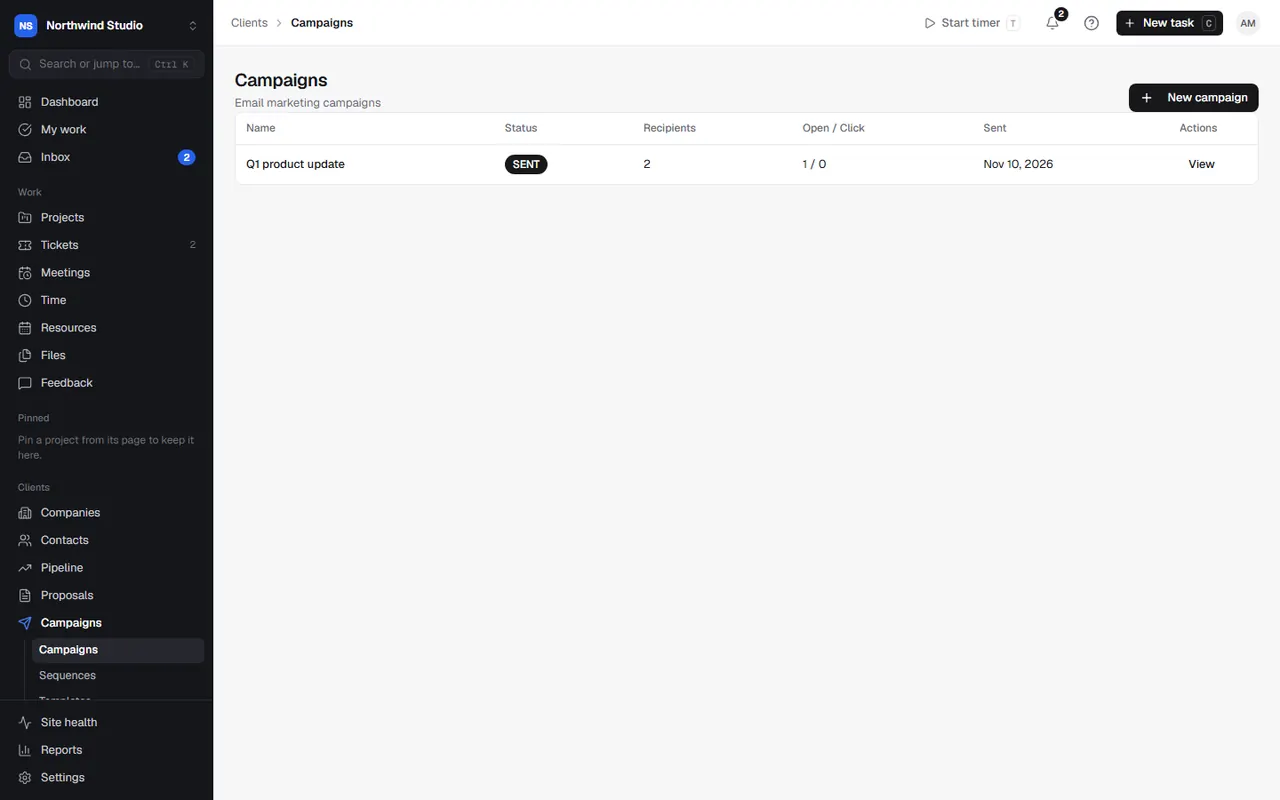
Large campaigns send in the background. Anyone can save drafts, but sending or scheduling needs the Send email campaigns permission (see permissions).
Campaigns only go to people with marketing consent and never to addresses on the never-email list.
Sequences
A sequence runs steps by itself for each person enrolled: emails, waits, tasks, collections and portal invites. Start with the client onboarding template (welcome email, portal invite, content collection, kickoff call and tasks), or build your own.
Steps include:
- Email, sent from your organisation or from the client's account manager (their name, with replies going to them).
- Wait a number of hours or days, optionally carrying on early when something happens first (an email opened or clicked).
- Condition: if yes, carry on, end the sequence, or jump forward to a later step. Branches only jump forward, so nobody goes round in circles or gets an email twice.
- Task for someone on the team (on the deal's project, or the client's latest active one).
- Collection: ask the client for content, from a template or a list you type.
- Portal invite.
New sequences are off until an owner or admin switches them on. People can be enrolled by hand, from a won deal's playbook, and from contact pages.
Templates
Campaigns › Templates holds saved emails in your logo and colours, for a newsletter, a welcome email or a service update. Campaigns and sequence emails can start from them.
Consent, unsubscribes and the never-email list
- Each contact's marketing consent is Given, Withdrawn or Unknown, recorded with where it came from (a lead form tick box, for example).
- Every campaign email has an unsubscribe link. Unsubscribed people get no campaigns (service notices still go).
- Campaigns › Never-email list holds addresses campaigns never go to: unsubscribes, hard bounces and complaints (added automatically from your email provider), and any you add by hand. Only take someone off if they've asked to get emails again.
Recently engaged
Campaigns › Recently engaged lists prospects who opened or clicked your emails lately, warmest first (a click counts more than an open, and recent beats old), from campaigns, sequences and connected Mailchimp. Start a deal to follow them up.
Other email tools
Use Mailchimp, GoHighLevel or MailPoet? Connect them in Settings › Email marketing tools. See Mailchimp and email marketing tools.
Settings in OpsDash
These open in OpsDash. You’ll be asked to sign in first if you aren’t already.
Related articles
- Service noticesTell clients about maintenance, outages and price changes by email and with a banner in their portal.
- Contacts and groupsKeep the people at each client, give them portal access, and group them for campaigns.
- Mailchimp, GoHighLevel and MailPoetConnect your email marketing tool to sync groups, tags and unsubscribes, bring campaign results onto contacts, and show clients' own campaign results.