Projects
Create a project, choose how it's organised, and use its overview, settings, status updates and templates.
A project holds the tasks for a piece of work for a client: a website build, a campaign, a monthly retainer. Each project belongs to a company.
Create a project
- Go to Projects and choose New project.
- Enter a name and description, and choose the company.
- Set the status (Planning, Active, On Hold, Completed or Cancelled).
- Choose how it's billed: Fixed Price, Hourly, Retainer, Internal or None, with a budget and currency. A project rate overrides the client's hourly rate for time on this project (people can still have their own rate on it).
- Choose the project structure:
- Simple: one task list and board.
- Phases: tasks grouped into phases such as Discovery, Design and Build.
- Sprints: a backlog and sprint cycles, with velocity tracking.
- Phases & Sprints: phases containing sprints.
You can change the structure later in the project's settings. Projects also start from won deals (the When won playbook) and from accepted quotes and proposals.
The project list
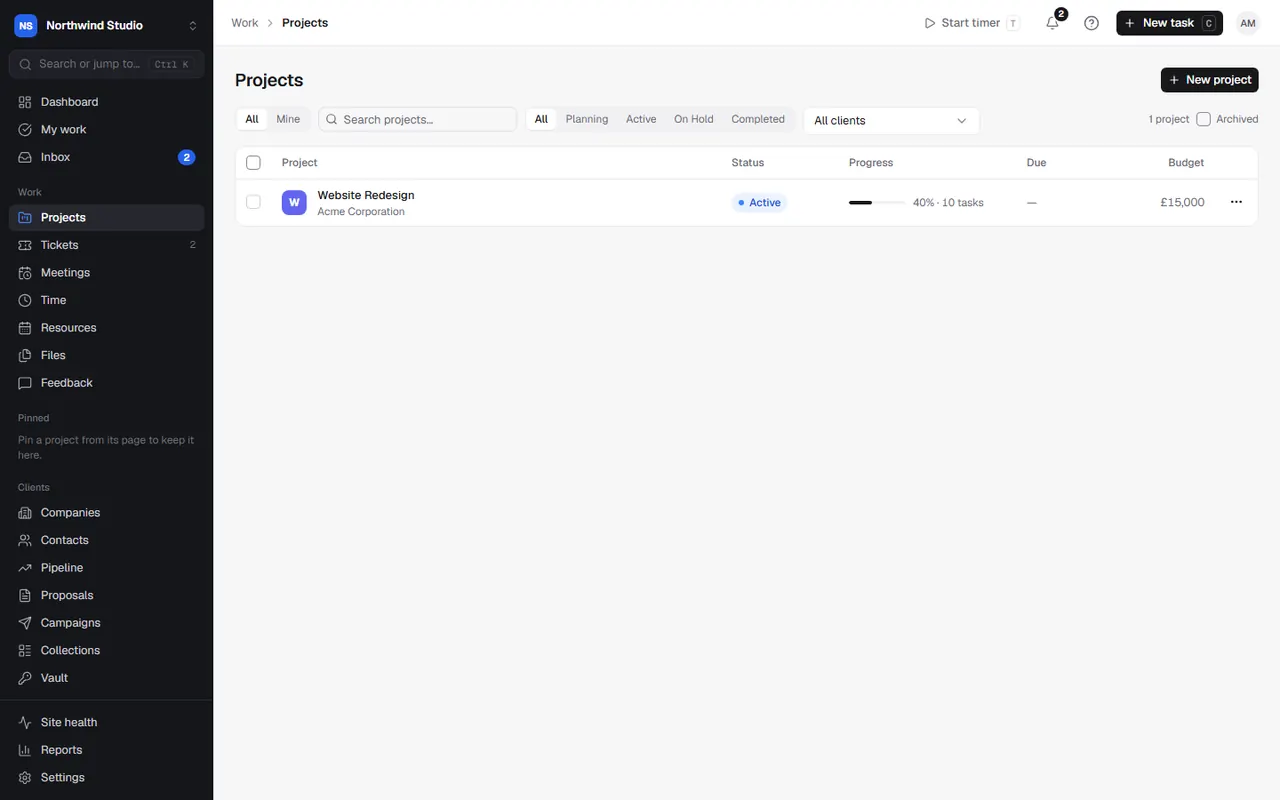
Filter projects by All or Mine, by status and by client, or search by name. Tick several to change their status or archive them together. Archived shows archived projects, which you can restore.
Inside a project
The tabs across the top of a project are its views: Overview, Board, List, Backlog (sprint projects), Timeline (phase or sprint projects), Files and Financials, with Workload, Content and Feedback under More. See boards, lists and other views.
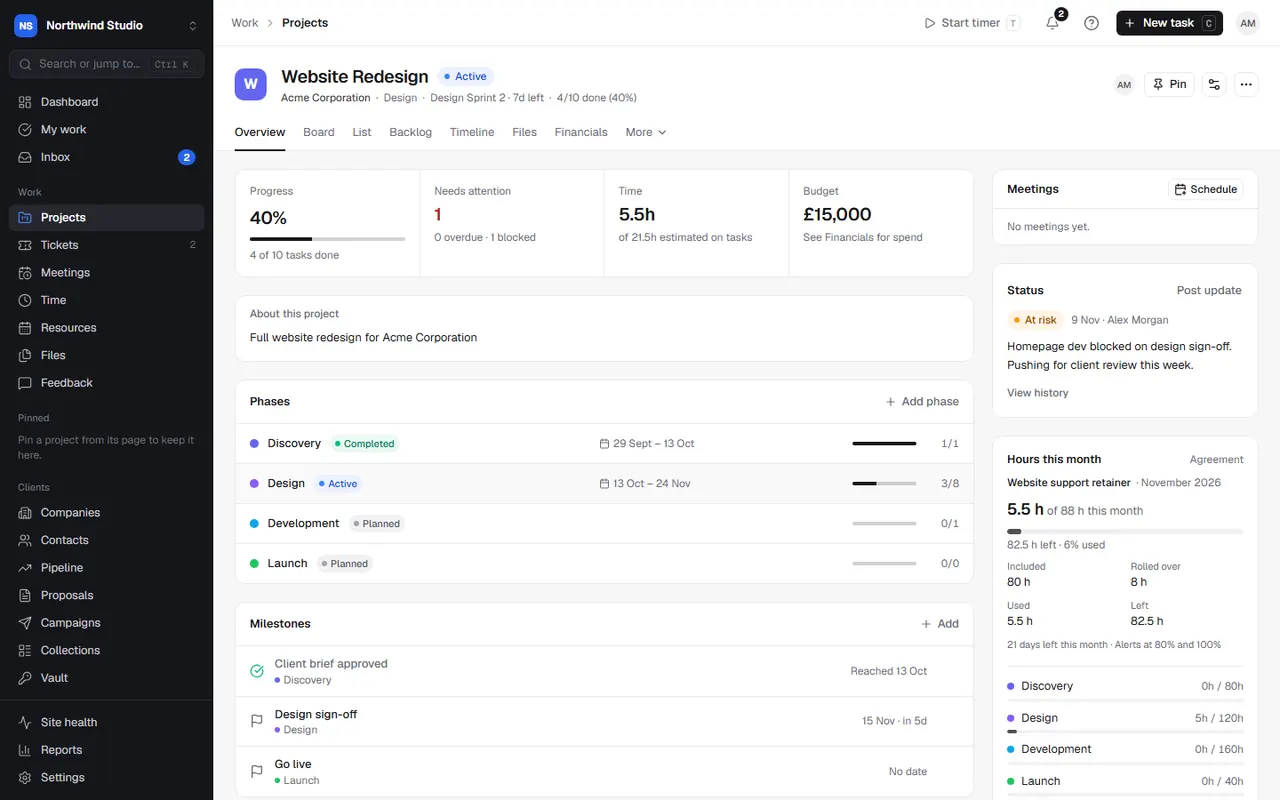
The Overview shows progress, what needs attention (overdue and blocked tasks), time and budget, the phases, the team and recently updated tasks.
Status updates
Tell the team (and the client, if you share it) how things are going. On the Overview, choose Post update, pick On track, At risk, Off track or On hold, and write a summary with optional highlights, risks and next steps. View history shows past updates.
Project settings
Open Settings (the cog in the project header):
- General: name, client, dates, budget and billing.
- Members: who is on the project. People only see projects they're members of if your agency limits project access (see permissions).
- Hours budget: hours for the project and each phase (on retainers, each month's comes from the agreement), and who hears at 80% and 100%.
- Structure: Simple, Phases, Sprints or both.
- Task statuses: the board's columns, in order. Mark which count as Closed (done) and which is the default for new tasks. Deleting a status asks where its tasks should go.
- Team rates: bill rates for people on this project.
- Integrations: link a GitHub repository and Figma files.
- Client portal: what the client can see and do in this project.
Templates
From a project's … menu, choose Save as template. It keeps the phases, sprints, task statuses, milestones and top-level tasks (not who's on them, dates or time), so new projects can start the same way. Pick a template when you create a project, or in the When won playbook for won deals.
Archive or delete
Archive hides a finished project but keeps everything. Delete permanently removes the project and all its tasks for good.
Related articles
- Boards, lists and other project viewsWork in a board or a list, group and filter tasks, save views, and use the timeline, workload, files and financials.
- Phases, sprints and milestonesSplit a project into phases, run work in sprints from a backlog, and mark key deliverables as milestones.
- The task panelCreate tasks, and set their status, people, dates, estimates, phase, sprint, tags, custom fields and recurrence from the task panel.