The task panel
Create tasks, and set their status, people, dates, estimates, phase, sprint, tags, custom fields and recurrence from the task panel.
Click any task, on a board, a list, My work or anywhere else, and it opens in the task panel on the right. Everything about the task is there, and changes save as you make them.
Create a task
- Press C anywhere (when you're not typing), or choose New task in the top bar. Pick the project and type a title.
- On a project's board or list, choose New task to add one there.
- In a sprint project's backlog, type a title and choose Add, or Full form… for everything.
The task's properties
At the top of the panel:
- Status: the project's statuses (its board columns).
- Priority: Low, Medium, High or Urgent.
- Assignee, plus anyone also assigned. You can assign people and, if you use them, agents. Find available helps pick someone with free time.
- Department: the team it belongs to.
- Due date.
- Phase and Sprint, on projects that use them.
- Time estimate (in minutes) and story points.
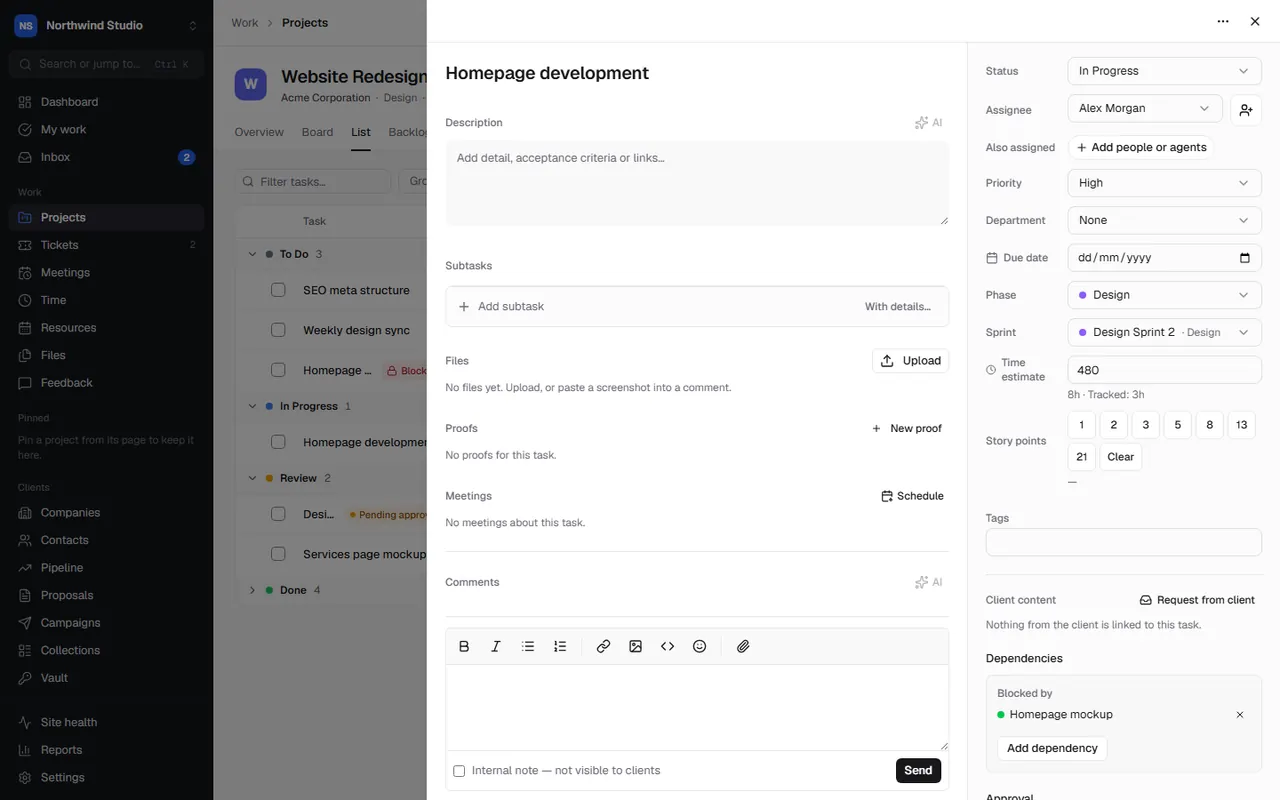
Below are the description, tags, custom fields (set up in Settings › Custom fields), the milestone it belongs to, and the sections for subtasks, dependencies, approval, files, proofs and comments.
Recurring tasks
For something that happens regularly (monthly reports, backups, check-ins), choose Add recurrence. Pick daily, weekly, fortnightly, monthly, quarterly or every so many days, and optionally a maximum number of times. The panel shows when the next one will be made. Remove recurrence stops it.
Links to other tools
- Pull request: paste a GitHub pull request link, and the task moves when the pull request is merged. See GitHub.
- Figma design: paste a Figma link to show the design on the task. See Figma.
- Calendar: add the task to your Google Calendar on its due date, or remove it. See Google Calendar.
Clients and tasks
If a client can see the project in their portal, they may see this task and, if you allow it, change some of its fields or add comments. Their activity shows as From the client. Internal comments and your team's time are never shown to them. See setting up the client portal.
Archive or delete
From the panel's menu, Archive hides a task but keeps it (you can restore it). Delete permanently can't be undone.
Overdue alerts
Choose when people hear about overdue tasks in Settings › Tasks.
Settings in OpsDash
These open in OpsDash. You’ll be asked to sign in first if you aren’t already.
Related articles
- Subtasks and dependenciesBreak a task into smaller steps, and record which tasks block others so nobody starts too early.
- Task files and commentsAttach files and screenshots, comment and @mention people, keep comments internal, pin the important ones and react.
- Approvals and proofsAsk a colleague to approve a task, and send designs or PDFs to clients to pin comments on and sign off.