Signing in and security
Choosing and resetting your password, sign-in codes, adding an authenticator app, recovery codes, and signing out everywhere.
Choosing a password
If your agency uses passwords, the first link they send asks you to choose a password. Type it twice and save. From then on, sign in with your email address and password on your agency's portal sign-in page.
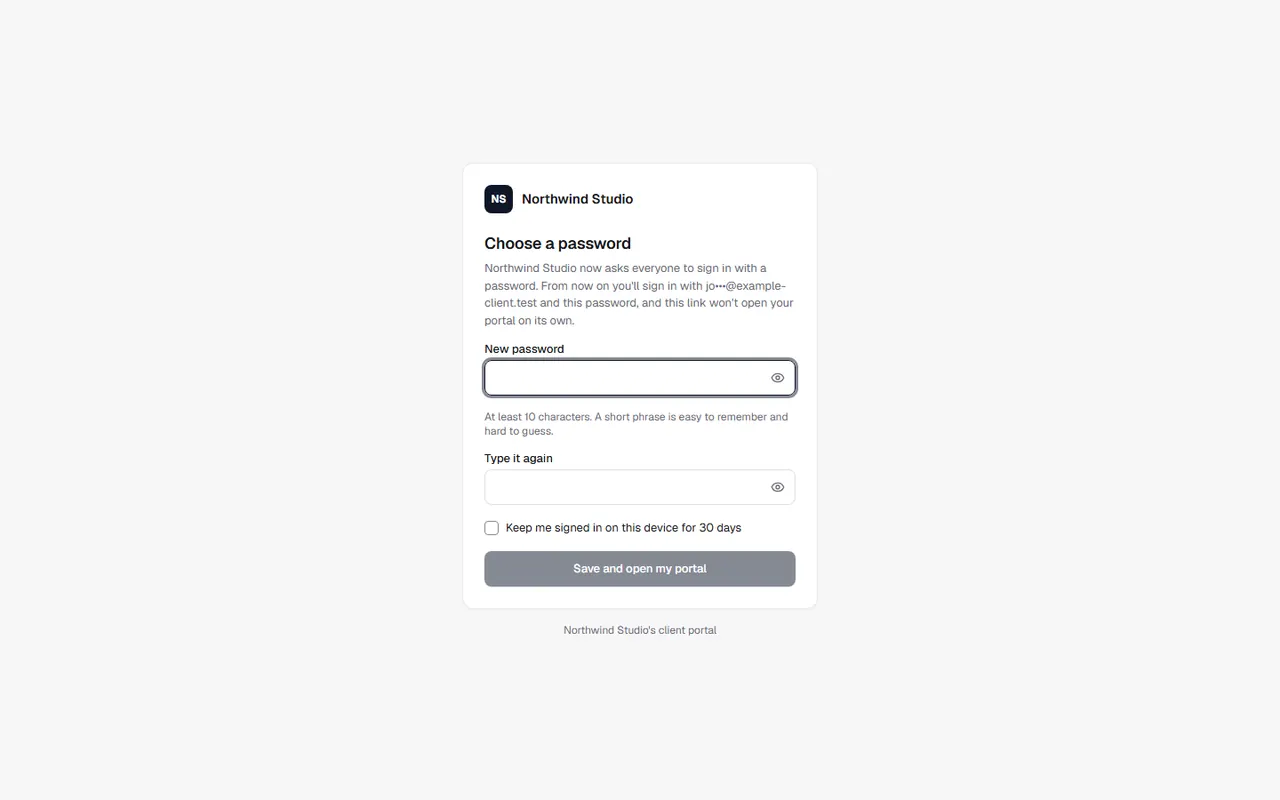
Each set-up link works once and lasts a short while. If it's expired, ask for a new one, or contact your agency.
Forgot your password
On the sign-in page, choose Forgot your password?, enter the email address you sign in with, and we'll email you a link to choose a new one.
Codes we email you
Your agency may ask for a second check when you sign in: a 6-digit code we email you, after your password (or after opening your portal link). Enter it to carry on. If it hasn't arrived, give it a minute, check spam, then choose Send a new code.
Using an authenticator app (recommended)
An app on your phone is safer than emailed codes: someone who learns your password still can't get in.
- Open your account menu and choose Password & security.
- You need a password first. Then, under Authenticator app, choose Set up.
- Enter your password, scan the QR code with an authenticator app (Google Authenticator, Microsoft Authenticator, 1Password, Authy or similar), and enter the 6-digit code it shows.
- Save your recovery codes somewhere safe, like a password manager. If you lose your phone, each code gets you in once.
From then on, you enter a code from the app after your password, instead of an emailed code. Make new codes gives you fresh recovery codes (the old ones stop working).
Lost your phone?
On the sign-in screen, choose Lost your phone? Use a recovery code and type one of the codes you saved. If you've lost those too, contact your agency: they can reset it so you can set it up again.
Change your password, or sign out everywhere
In Password & security: Change password (other browsers are signed out), and Sign out everywhere else if you've signed in on a computer you no longer use.
More than one company?
If you have a portal for more than one company, you're asked Which company? when you sign in. Sign out to pick another.
Related articles
- Getting started with your portalWhat your client portal is for, how to open it, and finding your way around.
- Connecting your AI assistantFor portal admins: connect Claude or another AI assistant to your portal with a token, so it can answer questions about your projects and help with tickets and tasks.