QuickBooks
Sync clients, invoices, credit notes and payments with QuickBooks Online both ways, and use QuickBooks' Pay now links.
Connect QuickBooks Online and OpsDash keeps the two in step: invoices you send go to QuickBooks, invoices made in QuickBooks come in, credit notes go both ways, and payments taken in QuickBooks (card, bank, PayPal or GoCardless) mark invoices paid in OpsDash.
What you need first
- A QuickBooks Online company, and a login that's an admin of it.
- The Sync with QuickBooks permission in OpsDash (owners and admins have it).
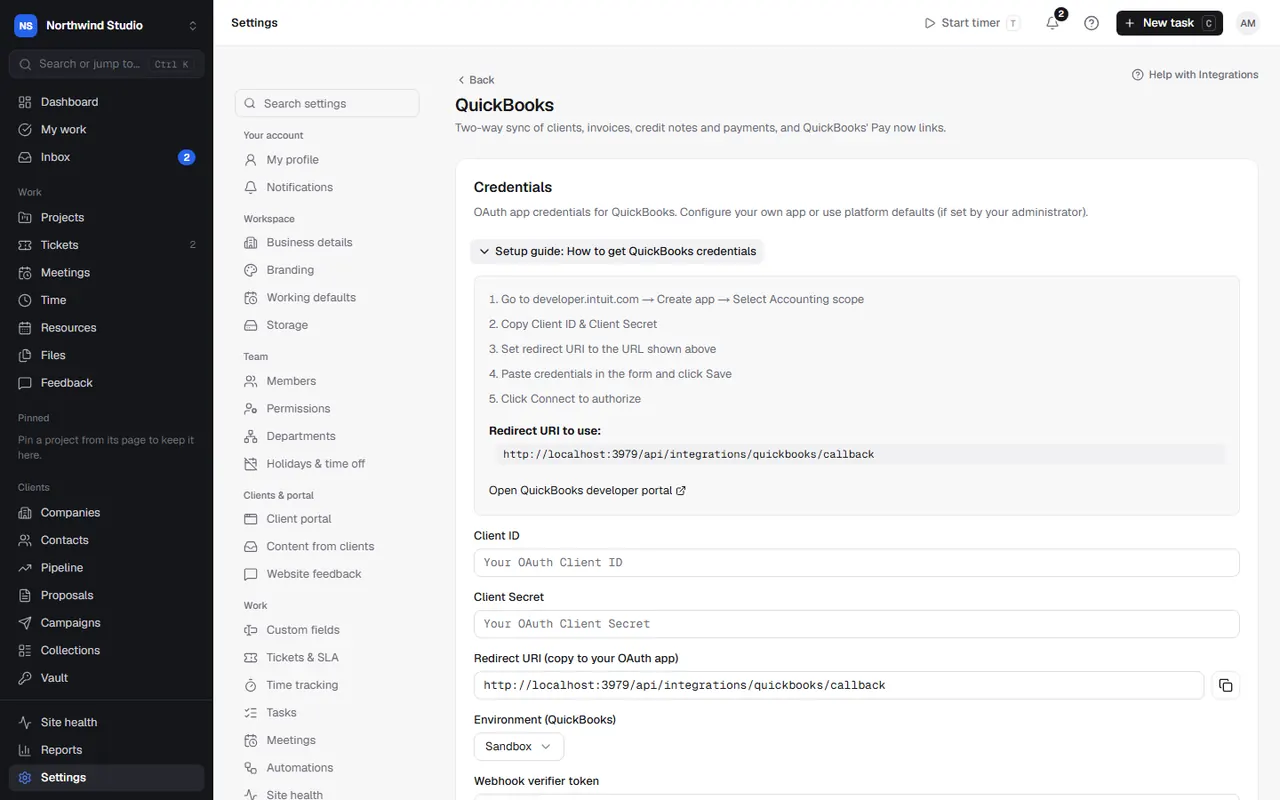
- QuickBooks credentials for your OpsDash. If your OpsDash already has them, you'll go straight to Connect. If the QuickBooks card asks you to Configure credentials, you need an Intuit developer app: its Client ID and Client Secret, the environment (Sandbox for testing, Production for real), and the redirect URI shown on the card added to your app's settings.
Connect
- Go to Settings › Integrations and find QuickBooks.
- If asked, Configure credentials and save them.
- Choose Connect, sign in to Intuit, and pick your QuickBooks company.
- You're back in OpsDash on the QuickBooks page, connected. Two-way sync stays off until you switch it on.
Choose what syncs
Under Two-way sync, switch on Keep OpsDash and QuickBooks in step, then choose:
- Sync invoices from: a date. Invoices dated before it stay where they are, so turning sync on doesn't copy your history across.
- Send invoices to QuickBooks: once an invoice is sent to the client. Edits and cancellations follow.
- Bring in invoices made in QuickBooks: matched by number first, so nothing is doubled.
- Add QuickBooks customers as clients: when no client has the same name.
- Credit notes both ways: as credit memos, applied to their invoice.
- Payments from QuickBooks: including PayPal and GoCardless through QuickBooks. Marks invoices paid or part paid.
- Payments recorded in OpsDash go to QuickBooks: bank transfers you record, and Stripe payments.
Product/service and VAT codes: choose the QuickBooks product/service invoice lines go against (or pick automatically), and how VAT codes are matched (by rate).
Webhooks (recommended)
So a payment taken in QuickBooks shows in OpsDash within moments, tell your Intuit app to send changes to OpsDash. The page shows the address to use:
- In the Intuit developer portal, open your app › Webhooks (production and sandbox each have their own).
- Paste the address as the endpoint URL.
- Tick Customer, Invoice, Credit Memo and Payment events.
- Copy the verifier token Intuit shows into Webhook verifier token in the credentials.
Without webhooks, an hourly catch-up still picks changes up. Until the verifier token is set, webhook calls are refused.
What it changes in OpsDash
- Invoices synced to QuickBooks are marked in the invoices list. Each invoice shows whether it's in QuickBooks yet.
- New clients may be added from QuickBooks customers, and invoices made in QuickBooks appear in OpsDash.
- Payments from QuickBooks are recorded on invoices automatically.
- With QuickBooks Payments chosen in Settings › Bank & payment, invoices get QuickBooks' own Pay now link once they've synced.
- Report settings can use your QuickBooks bank balance and import bills and expenses as money out.
- A service can be invoiced by a QuickBooks recurring invoice (Set up in QuickBooks on the service).
Sync status, conflicts and one-off actions
The QuickBooks page shows the last sync, linked records, conflicts and errors. Sync now runs a catch-up straight away.
- Conflicts: a record changed in both places. Pick Keep OpsDash's or Keep QuickBooks'; the other side is updated to match.
- Didn't sync: records that failed, tried again on every sync until fixed.
- Test connection, Send all open invoices and Bring in payments work even with two-way sync off, and never duplicate what's already linked.
Import review
QuickBooks import review shows which QuickBooks customers became which clients, and which invoices came in. Merge into… a duplicate client, Change client… on a wrong match, or Discard an import (it's archived in OpsDash and left alone by the sync; QuickBooks keeps it). Restore undoes a discard. Nothing here changes QuickBooks.
Troubleshooting
- "Configure OAuth credentials first": add the Client ID and Secret under Configure credentials.
- Connected, but nothing syncs: two-way sync is off until you switch it on, and only invoices dated on or after Sync invoices from sync.
- Payments take an hour to appear: webhooks aren't set up, or the verifier token is missing. The page says "No webhook from QuickBooks yet".
- Duplicate clients: merge them in the import review. Turn off Add QuickBooks customers as clients if your names differ between the two.
- The connection stops working: Intuit connections expire if unused for a long time or if access is revoked in QuickBooks. Disconnect and Connect again.
- Wrong environment: sandbox credentials only connect to sandbox companies. Use Production credentials for your real company.
Settings in OpsDash
- Integrations › QuickBooks
- Integrations › QuickBooks import review
- Integrations › Integrations
- Bank & payment › Pay online
- Reports › Where money out comes from
These open in OpsDash. You’ll be asked to sign in first if you aren’t already.
Related articles
- InvoicesCreate invoices by hand or from time and expenses, get them approved, send them, and track what's owed.
- Payments, credit notes and payment schedulesRecord payments, take card payments online, correct invoices with credit notes, and split projects into staged payments.
- Stripe and online paymentsPut a Pay now link on invoices, reminders and the portal, through Stripe or QuickBooks Payments, and record card payments automatically.