Proposals and contracts
Build proposals from blocks, send them for acceptance, and send contracts for e-signature with an audit trail.
Proposals win the work; contracts make it official. Both are found under Proposals in the sidebar, with their templates.
Proposals
A proposal is a web page your client opens from a link, built from blocks: a cover, executive summary, scope of work, timeline, investment (pricing tables and packages), team, terms and conditions, next steps, images, two-column layouts and your own rich text.
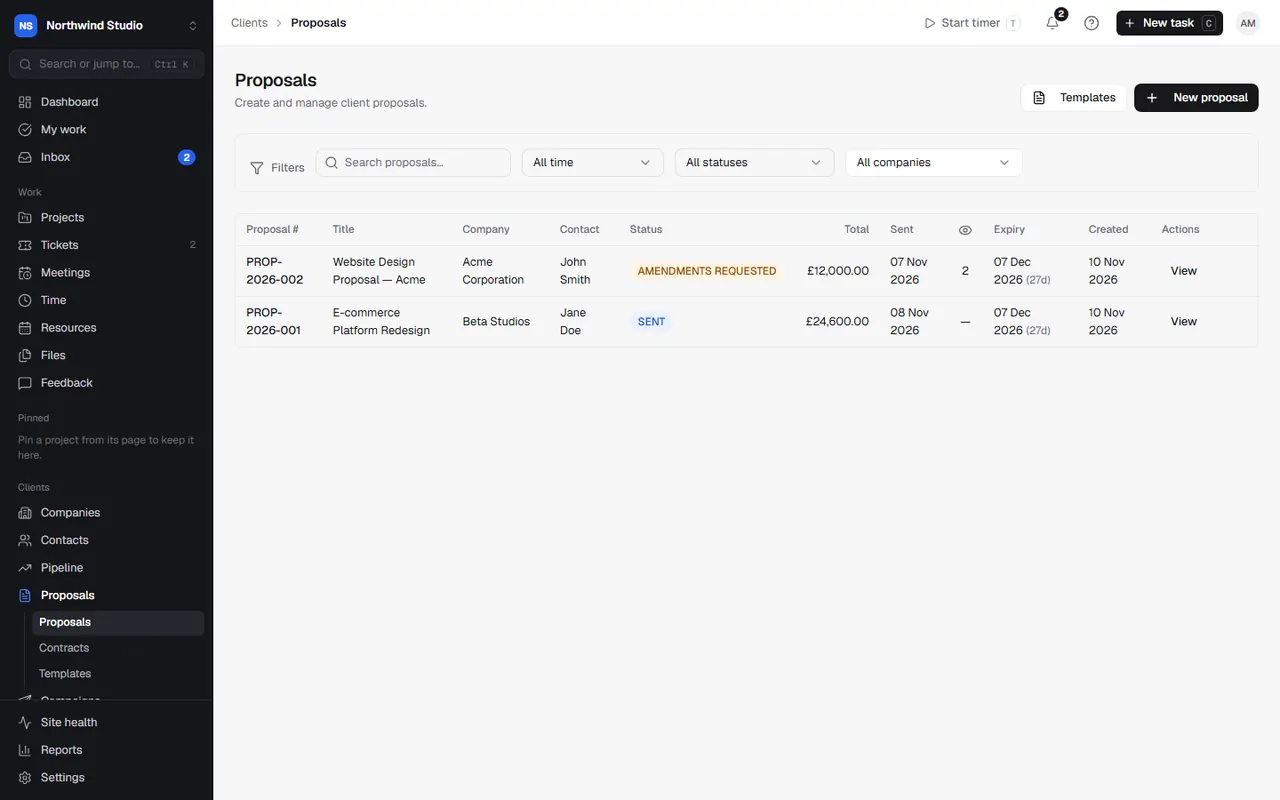
Build one
- Choose New proposal, or Quote or proposal › New proposal on a deal so it's filled in from the deal.
- Add blocks with Add block, or apply a template (this replaces the current blocks). Reorder blocks with the up and down arrows, duplicate them, or hide a block from the client while you work on it.
- Save any block as a reusable section from its menu, and find it later under Saved sections.
- Preview to see it as the client will.
Text fields can insert the client's name and company, and (with an AI key) draft text for you.
Send it
Choose Send. OpsDash emails the client their link, or you can copy the client link and send it yourself. The client can accept it online, or ask for changes: their amendments appear on the proposal for you to accept or reject with a note.
When it's accepted (or you choose Mark accepted), Next steps offers to Generate contract, Generate deposit invoice (a percentage of the total) and Create project. If the proposal came from a deal, the deal's When won playbook can run too.
Templates
Make templates under Proposals › Templates, and mark one as the default for new proposals. Blocks in a template can be locked so they're kept as they are.
Contracts
A contract has a type (NDA, MSA, SOW, change order, development agreement or custom), a company and contact, a value and dates. Choose New Contract, or From Template to start from one of your contract templates. Build it from clauses, adding standard ones from the clause library, or upload a PDF instead.
Approval
If you set a contract approval threshold in Settings › Invoices & quotes, contracts over that value need approving before they can be sent: choose Submit for approval, then someone reviews it and chooses Approve.
Send for signing
Only owners and admins can send contracts for signing.
- Choose Send for signing.
- Add the signers: at least one from the client and one from your agency.
- Choose the signing order: everyone at once, or one after another (each signer gets their link when the previous one has signed).
- Optionally set a signing deadline, after which the links stop working.
Signers sign online from their email link (no account needed). The contract's Signatures panel shows progress; you can Resend email or Copy signing link. Every view and signature is recorded in the Audit trail, and the finished contract can be downloaded as a PDF.
Changing a signed or sent contract
- Unlock cancels pending signatures (signers are told) so you can edit and resend.
- Void cancels all pending signatures for good.
- Amendments record changes to a contract after it's signed.
- Cancel contract marks it cancelled.
Contract numbers follow the prefix in Settings › Invoices & quotes › Numbering.
Settings in OpsDash
These open in OpsDash. You’ll be asked to sign in first if you aren’t already.
Related articles
- Deals and the pipelineTrack sales from enquiry to won, chase next steps, spot opportunities with existing clients, and let a won deal set up the work.
- QuotesPrice smaller jobs with a quote, send it for acceptance, and turn an accepted quote into an invoice or a project.
- ProjectsCreate a project, choose how it's organised, and use its overview, settings, status updates and templates.