My work
Everything that needs you across all projects: overdue, due today, the next week, approvals and mentions.
My work gathers every task assigned to you, across every project, and everything waiting on you.
The sections
- Overdue: past their due date.
- Due today.
- Next 7 days.
- No due date: tasks assigned to you with no date (give them one).
- Approvals: tasks colleagues have asked you to approve.
- Mentions: comments where someone @mentioned you.
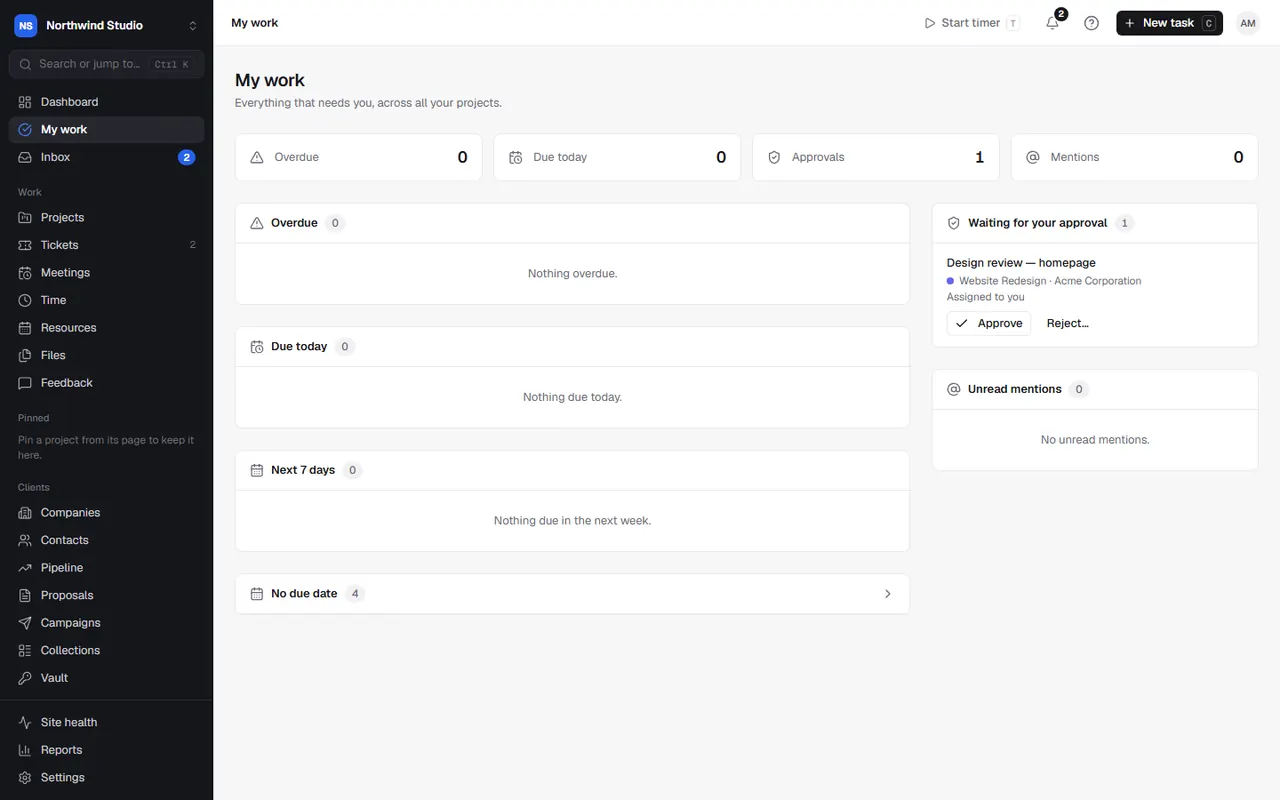
The counts at the top jump to each section. When everything's done, it says you're all caught up.
Working from My work
- Tick a task to mark it done (there's an Undo if you slip).
- Click a task to open it in the task panel.
- Approve a task, or choose Send back for changes and say what needs to change.
- Open a mention to go to the comment, or dismiss it.
Your dashboard and inbox
Your dashboard shows the same counts (Overdue, Due today, Approvals, Mentions) with your tasks, alongside this month's numbers. Your Inbox holds all your notifications. Choose which you get by email in Settings › Notifications.
Settings in OpsDash
These open in OpsDash. You’ll be asked to sign in first if you aren’t already.
Related articles
- The task panelCreate tasks, and set their status, people, dates, estimates, phase, sprint, tags, custom fields and recurrence from the task panel.
- Approvals and proofsAsk a colleague to approve a task, and send designs or PDFs to clients to pin comments on and sign off.
- Finding your way aroundThe sidebar, the top bar, search (Ctrl+K), keyboard shortcuts, your dashboard, My work and your inbox.